
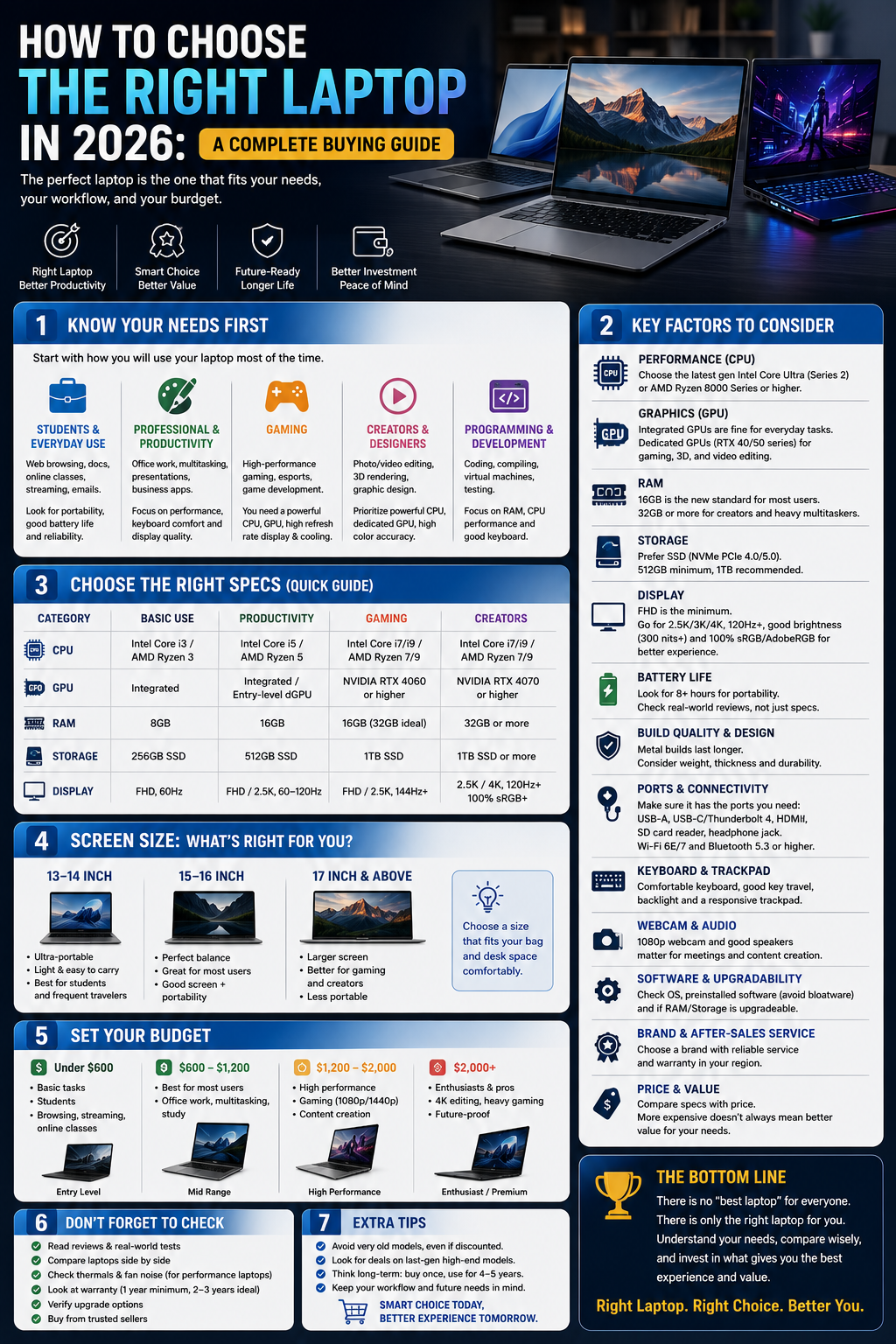
Shopping for a new laptop in 2026 means wading through an overwhelming range of processors, display types, and marketing terms that all claim to matter. Retail listings pack in specifications that sound impressive but don’t always translate into a better experience for the person actually using the machine.
The reality is that there’s no single “best” laptop. The right choice depends entirely on how you plan to use it. A laptop built for gaming looks very different from one built for writing papers on a coffee shop table, and a machine optimized for video editing has different priorities than one meant to last a full day on battery during business travel. This guide walks through the specifications that genuinely matter, explains them in plain terms, and helps you match them to your actual needs.
Start With Your Use Case
Before comparing specifications, it helps to define what you’ll actually be doing with the laptop. Different use cases call for very different priorities.
Students typically need a balance of portability, reasonable battery life, and enough performance for writing, research, and light multitasking, often on a limited budget.
Everyday users who browse, message, stream, and handle basic tasks generally don’t need high-end hardware, but benefit from a comfortable display and reliable battery life.
Office and productivity work often involves spreadsheets, video calls, and multiple browser tabs at once, which places more emphasis on RAM and multitasking performance than raw processing power.
Creators working with photo or video editing need stronger processors, more RAM, and often a dedicated graphics card, along with a color-accurate display.
Programmers benefit from solid multitasking performance, comfortable keyboards for long typing sessions, and often prefer larger displays or the ability to connect external monitors.
Gaming laptops prioritize dedicated graphics performance, effective cooling, and higher-refresh-rate displays, usually at the cost of portability and battery life.
Travel-focused users prioritize light weight, long battery life, and durable build quality over raw performance.
Professional workloads, such as engineering, 3D rendering, or scientific computing, typically require higher-tier processors, more RAM, and sometimes specialized graphics hardware [Internal Link: Laptops].
Processor
The processor, or CPU, is the core component that determines how quickly your laptop handles tasks.
CPU Basics
A processor executes instructions for everything the laptop does, from opening apps to rendering video. Faster and more efficient processors generally handle demanding tasks more smoothly, but the practical difference varies depending on what you actually use the laptop for.
Performance Cores and Efficiency Cores
Many modern processors combine performance cores, designed for demanding tasks, with efficiency cores, designed for lighter tasks and better battery life. This combination helps laptops balance speed with power efficiency depending on the workload.
Why Processor Generation Matters
Newer processor generations generally offer better performance and efficiency than older ones, even within the same product line. Checking a processor’s generation, not just its brand name, helps you understand roughly how current the hardware is.
Why Processor Names Can Be Confusing
Processor naming conventions vary between manufacturers and don’t always clearly indicate performance tier at a glance. It’s worth looking past the name itself and researching where a specific processor sits within its manufacturer’s current lineup.
How Much CPU Performance Different Users Actually Need
Everyday users and students can typically manage well with mid-tier processors. Creators, programmers working with larger projects, and gamers generally benefit from higher-tier processors, while professional workloads may require the most powerful options available [Internal Link: PC Hardware].
RAM
RAM affects how many applications and background processes your laptop can handle smoothly at once.
8GB
8GB is generally considered a baseline today, suitable for basic browsing, document editing, and light multitasking, though it can feel limiting with many browser tabs or heavier applications open simultaneously.
16GB
16GB has become a common sweet spot for most users, offering comfortable headroom for multitasking, office work, and moderate creative tasks.
32GB
32GB and above is generally aimed at creators working with large files, programmers running multiple development environments, or anyone doing heavy multitasking across demanding applications.
When More RAM Is Useful
More RAM helps most when you regularly run several demanding applications simultaneously, work with large files, or keep dozens of browser tabs open at once.
Multitasking
Insufficient RAM often shows up as slowdowns when switching between apps or when a browser has to reload tabs that were pushed out of memory. If this sounds familiar from a current laptop, more RAM is usually worth prioritizing.
Whether RAM Can Be Upgraded
RAM upgradability varies significantly between laptop models. Some allow RAM to be added or replaced later, while many thinner laptops solder RAM directly to the motherboard, making the amount you buy at purchase the amount you’ll have for the life of the laptop. Checking this before buying is worthwhile if you expect your needs to grow.
Storage
Storage type and capacity affect both speed and how much you can keep on the device itself.
SSD vs. Older Storage Technologies
Solid-state drives (SSDs) are now standard in most laptops and offer significantly faster load times and file transfers compared to older mechanical hard drives, along with better durability since they have no moving parts.
256GB
256GB suits users with modest storage needs, especially those who rely on cloud storage or streaming rather than keeping large files locally.
512GB
512GB offers more comfortable headroom for a typical mix of applications, documents, media, and moderate photo or video libraries.
1TB
1TB and above generally suits creators working with large video or photo files, gamers with sizable game libraries, or anyone who prefers not to manage storage space actively.
When Additional Storage Is Useful
If you regularly work with large media files, install many applications or games, or keep extensive offline archives, higher storage capacity reduces the need to constantly manage space.
External Storage and Cloud Storage
External SSDs and cloud storage services can supplement a laptop’s built-in storage, which is worth considering if you’re deciding between storage tiers on a budget [Internal Link: Accessories].
Display
The display is one of the most important parts of a laptop, since it’s what you look at during every session.
Screen Size
Larger screens are more comfortable for multitasking and creative work but add weight and reduce portability. Smaller screens are easier to carry but can feel cramped for detailed work.
Resolution
Higher resolution displays show more detail and sharper text and images, which particularly benefits creative work and general visual clarity, though the difference becomes less noticeable on smaller screens.
IPS
IPS panels are known for consistent color and wide viewing angles, making them a reliable choice for general use and collaborative work where multiple people view the screen from different angles.
OLED
OLED displays offer deeper contrast and richer colors by turning off individual pixels for true blacks, which benefits both media consumption and color-sensitive creative work, though it comes at a higher cost.
Refresh Rate
Higher refresh rates make scrolling and motion appear smoother, which benefits gaming and can make everyday use feel more responsive, though the effect is more noticeable to some users than others.
Brightness
Higher peak brightness improves visibility in bright environments, such as near windows or outdoors, and matters more for people who frequently work in varied lighting conditions.
Color Accuracy
Accurate color reproduction matters significantly for photo and video editing, graphic design, and other color-sensitive creative work, and less for general browsing or office tasks.
Glossy vs. Matte Screens
Glossy screens tend to produce more vibrant colors and contrast but reflect more glare in bright environments. Matte screens reduce glare at a slight cost to color vibrancy, which can matter for anyone working near windows or outdoors.
Which Display Features Matter for Different Users
Creators and anyone doing color-sensitive work should prioritize color accuracy and resolution. Gamers benefit most from higher refresh rates. Everyday users and students can generally prioritize comfortable brightness and a matte or anti-glare finish over premium specifications.
Graphics
Graphics processing affects how well a laptop handles visual and computational tasks beyond basic display output.
Integrated Graphics
Integrated graphics are built into the processor and handle everyday tasks, video playback, and light creative work efficiently, without adding significant cost or reducing battery life as much as dedicated graphics.
Dedicated Graphics
A dedicated graphics card, or GPU, provides significantly more graphical processing power, which benefits demanding tasks but typically increases cost, weight, and power consumption.
Gaming
Modern games, particularly at higher settings, generally require dedicated graphics to run smoothly. Integrated graphics can handle lighter or older titles reasonably well but struggle with more demanding, recent games.
Video Editing
Video editing, especially with high-resolution footage or effects-heavy projects, benefits from dedicated graphics, which can significantly speed up rendering and playback performance.
3D Work
3D modeling, rendering, and similar professional workloads typically require dedicated graphics, often with specific performance tiers depending on the complexity of the work.
Everyday Use
For browsing, office work, and streaming, integrated graphics are generally sufficient, and paying extra for dedicated graphics you won’t use adds cost without meaningful benefit.
Not Everyone Needs a Dedicated GPU
A dedicated graphics card is a meaningful investment best reserved for gaming, video editing, 3D work, or similar demanding tasks. For most everyday and office use, integrated graphics handle the workload comfortably.
Battery Life
Battery performance significantly affects how usable a laptop is away from a power outlet.
Why Advertised Battery Life Can Differ From Real-World Use
Manufacturer battery estimates are typically measured under specific, often light, usage conditions. Real-world battery life depends heavily on what you’re actually doing on the laptop, and it’s common to see shorter battery life in daily use than advertised figures suggest.
Battery Capacity
Battery capacity, usually measured in watt-hours (Wh), gives a general indication of energy storage, but it doesn’t tell the full story without considering how efficiently the laptop uses that energy.
Screen Brightness
Higher screen brightness draws more power, so battery life at maximum brightness will typically be shorter than at moderate settings.
Processor Efficiency
More power-efficient processors can extend battery life meaningfully, even with similar battery capacity, which is part of why two laptops with similar batteries can have different real-world endurance.
Workload
Demanding tasks like video editing, gaming, or running multiple applications simultaneously drain the battery faster than light browsing or document editing.
Charging
Charging speed varies between laptops, and some support fast charging that can restore a significant portion of battery in a short time, which is worth checking if quick top-ups matter to your routine.
Portability and Build Quality
How a laptop feels to carry and use daily matters just as much as its internal specifications for many buyers.
Laptop Weight
Lighter laptops are easier to carry regularly, which matters more for students, travelers, and anyone frequently moving between locations, while heavier laptops often make room for larger batteries or more powerful cooling systems.
Thickness
Thinner laptops are generally more portable but can have less room for cooling and ports, which sometimes results in trade-offs for sustained performance.
Materials
Laptop bodies are made from various materials, including aluminum, magnesium alloys, and plastics, each offering different trade-offs between weight, durability, and cost.
Hinge Quality
A sturdy hinge affects how well the laptop withstands repeated opening and closing over years of use, and weak hinges are a common source of long-term wear.
Durability
Some laptops undergo durability testing for drops, temperature extremes, or dust and moisture exposure, which can matter for anyone using their laptop in less controlled environments.
Travel Considerations
Frequent travelers benefit from lighter, more compact laptops with solid battery life and durable construction, since travel conditions are often less predictable than a stable desk setup [Internal Link: How-To].
Keyboard and Trackpad
For anyone spending hours working on a laptop, the keyboard and trackpad have a direct impact on comfort and efficiency.
A comfortable keyboard with adequate key travel and spacing reduces fatigue during long typing sessions, which matters significantly for students, writers, and programmers. Backlit keyboards are useful for anyone working in low light.
A responsive, accurately tracking trackpad reduces reliance on an external mouse, which matters most for travel and situations where carrying additional accessories isn’t practical. Precision and multi-touch gesture support vary noticeably between laptops, so it’s worth testing in person when possible.
Ports and Connectivity
Ports determine what you can plug into your laptop without relying on adapters or hubs.
USB-C
USB-C has become the standard port for charging and data transfer on most modern laptops, and many support additional functions like video output through the same port.
USB-A
USB-A ports remain useful for connecting older peripherals, flash drives, and accessories that haven’t transitioned to USB-C.
HDMI
A built-in HDMI port allows direct connection to external monitors or projectors without needing an adapter, which is convenient for presentations and multi-monitor setups.
Thunderbolt/USB4 Where Applicable
Thunderbolt and USB4 ports support significantly faster data transfer and can drive high-resolution external displays, which particularly benefits creators working with external storage or multiple monitors.
Headphone Jack
A dedicated headphone jack remains useful for anyone who prefers wired headphones or needs to avoid Bluetooth latency, though it has been removed from some newer, thinner laptop designs.
SD Card Readers
A built-in SD card reader is particularly useful for photographers and videographers who frequently transfer files from cameras.
Wi-Fi
Newer Wi-Fi standards generally offer faster speeds and better performance in crowded network environments, provided your router also supports the same standard.
Bluetooth
Bluetooth version affects connection stability and compatibility with wireless accessories like mice, keyboards, and headphones.
Why Buyers Should Check Ports Before Purchasing
Thinner laptops often include fewer built-in ports, which can mean relying on adapters or a USB-C hub for everyday connectivity [Internal Link: Accessories]. Checking which ports you actually use regularly, before buying, helps avoid an inconvenient surprise after purchase.
Operating System
The choice between operating systems affects software compatibility, interface style, and overall workflow.
Windows
Windows offers broad hardware compatibility and the widest range of available software, including most professional and gaming applications, along with flexibility across a huge range of laptop models and price points.
macOS
macOS offers a tightly integrated experience across Apple’s hardware and software, along with strong performance efficiency, but is limited to Apple’s own laptop lineup and has different software availability compared to Windows.
ChromeOS
ChromeOS is a lightweight, browser-centric operating system well suited to web-based tasks and typically found on more affordable, simpler laptops, though it has more limited support for traditional desktop software and offline applications compared to Windows or macOS.
Choosing Between Them
The right operating system often comes down to the software you need to run, your familiarity with a particular ecosystem, and whether you need compatibility with specific professional or gaming applications.
Upgradability and Repairability
How easily a laptop can be upgraded or repaired affects its long-term value and lifespan.
Replaceable SSDs
Some laptops allow the storage drive to be replaced or upgraded later, while others solder storage directly to the motherboard, making the original capacity permanent.
Upgradeable RAM
As mentioned earlier, RAM upgradability varies by model. Laptops with upgradeable RAM offer more flexibility to extend usable life as your needs grow.
Battery Replacement
Some laptops are designed with more accessible batteries that can be replaced when they degrade, while others require more involved repair processes, which can affect long-term cost and convenience.
Repair Considerations
Laptops with more repairable designs generally cost less to maintain over time and can be kept in service longer, which matters if you plan to use the same laptop for many years.
Why Buyers Should Check the Design Before Purchasing
If long-term upgradability or repairability matters to you, it’s worth researching a specific model’s design before buying, since this information isn’t always highlighted in marketing materials [Internal Link: Buying Guides].
Laptop Buying Guide by User Type
Best type of laptop for students: A lightweight, durable laptop with solid battery life and enough performance for writing, research, and light multitasking, generally without needing dedicated graphics.
Best type for office work: A laptop with a comfortable keyboard, reliable battery life, and enough RAM to handle spreadsheets, video calls, and multiple browser tabs smoothly.
Best type for programming: A laptop with a capable processor, ample RAM for running development environments, a comfortable keyboard, and ideally a larger or higher-resolution display for managing code and multiple windows.
Best type for content creation: A laptop with a strong processor, higher RAM capacity, a color-accurate display, and dedicated graphics suited to the specific type of creative work involved.
Best type for gaming: A laptop with dedicated graphics matched to the games you play, a higher-refresh-rate display, and effective cooling, generally accepting some trade-off in portability and battery life.
Best type for travel: A lightweight, compact laptop with strong battery life and durable build quality, prioritizing portability over maximum performance.
Best type for general everyday use: A balanced mid-range laptop with a comfortable display, reliable battery life, and enough performance for browsing, streaming, and everyday tasks without unnecessary extra cost [Internal Link: Best Picks].
How Much Should You Spend?
Rather than fixating on specific prices, which change over time, it helps to think in terms of general budget tiers and what each realistically offers.
Entry-level laptops generally offer basic performance suited to browsing, document editing, and light multitasking, often with more modest displays and build materials.
Mid-range laptops typically balance performance, display quality, and build quality reasonably well, suiting most students, office workers, and everyday users comfortably.
Premium laptops usually offer stronger processors, better displays, and higher-quality materials, aimed at users who want a more refined experience or need extra performance headroom for creative or professional work.
High-performance laptops, including many gaming and workstation models, prioritize maximum processing and graphics power, generally at the cost of portability, battery life, and price [Internal Link: Comparisons].
Matching your budget tier to your actual use case, rather than reaching for the highest tier available, tends to produce the best overall value.
Common Laptop Buying Mistakes
- Buying based only on processor branding rather than researching where a specific chip actually sits in performance and generation.
- Ignoring RAM, especially on laptops where RAM can’t be upgraded later.
- Buying too little storage, underestimating how quickly files, applications, and games accumulate over time.
- Ignoring display quality, since a lower-quality panel can make daily use noticeably less comfortable regardless of other specifications.
- Ignoring ports, resulting in an unexpected need for adapters or hubs for basic daily connectivity.
- Assuming a larger laptop is always better, when size and weight trade-offs matter significantly for portability-focused users.
- Choosing gaming hardware for simple tasks, paying for dedicated graphics and high-refresh displays that go unused for basic browsing and office work.
- Ignoring repairability and upgrade options, which can shorten a laptop’s useful lifespan and increase long-term costs.
- Overlooking battery life in favor of raw performance, particularly for users who work away from a power outlet often.
- Skipping keyboard and trackpad research, despite these being the parts of the laptop used most directly during daily work.
Laptop Buying Checklist
- Have you identified your primary use case and matched specifications accordingly?
- Does the processor and RAM combination fit your actual performance needs?
- Is the storage capacity sufficient for your files, applications, and media?
- Does the display size, resolution, and type suit your work and viewing preferences?
- Do you need dedicated graphics, or will integrated graphics comfortably handle your tasks?
- Is the battery life realistic for how you plan to use the laptop away from a charger?
- Is the weight and build quality appropriate for how often you’ll carry it?
- Have you checked that the keyboard and trackpad feel comfortable for extended use?
- Does the laptop include the ports you actually rely on day to day?
- Have you considered the operating system’s software compatibility with your needs?
- Have you checked upgradability and repairability if long-term use matters to you?
Frequently Asked Questions
Do I need a dedicated graphics card if I don’t play games? Generally not. Integrated graphics handle browsing, office work, and streaming comfortably. Dedicated graphics matter most for gaming, video editing, and 3D work.
Is 16GB of RAM enough in 2026? For most everyday, office, and student use, 16GB is a comfortable amount. Heavier multitasking, programming, or creative work may benefit from 32GB or more.
Should I prioritize battery life or performance? It depends on how and where you use the laptop. Frequent travelers and students benefit more from strong battery life, while stationary, performance-intensive work benefits more from raw processing power.
Is OLED worth the extra cost? It depends on your priorities. OLED offers noticeably better contrast and color, which benefits media consumption and color-sensitive creative work, but it isn’t essential for general browsing and office tasks.
Can I upgrade my laptop’s RAM and storage later? It depends entirely on the specific model. Some laptops allow upgrades, while many thinner designs solder these components in place. Checking this before buying is important if future upgrades matter to you.
Do I need a laptop with a lot of ports? Only if you regularly connect multiple peripherals or external displays without wanting to rely on adapters or a hub. Otherwise, a laptop with fewer ports may be perfectly manageable.
Is a more expensive laptop always better? Not necessarily. A higher price often reflects premium materials, a better display, or stronger performance, but the value only matters if those upgrades align with how you’ll actually use the laptop.
Which operating system is best? There’s no universally best option. The right operating system depends on the software you need, your familiarity with a given ecosystem, and whether specific professional or gaming applications require a particular platform.
Comparison Table: Key Laptop Features
| Laptop Feature | What to Consider | Best For |
|---|---|---|
| Processor | Performance tier matched to your actual workload | Programmers, creators, gamers |
| RAM | Capacity suited to your multitasking habits | Heavy multitaskers, creators |
| Storage | SSD capacity matched to files and applications | Creators, gamers, media users |
| Display | Resolution, panel type, and brightness for your use | Creators, gamers, everyday users |
| Graphics | Integrated for general use, dedicated for demanding tasks | Gamers, video editors, 3D work |
| Battery | Real-world battery life for your typical workload | Students, travelers |
| Weight | Portability suited to how often you carry it | Students, travelers |
| Ports | Built-in connections matching your accessories | Creators, professionals |
| Operating System | Software compatibility with your needs | All users |
| Upgradeability | Long-term flexibility for RAM, storage, and repairs | Long-term owners |
Conclusion
Choosing the right laptop in 2026 comes down to matching specifications to how you’ll actually use the machine, rather than chasing the highest numbers on a spec sheet. A gaming laptop won’t necessarily serve a student well, and a lightweight travel laptop isn’t built for demanding video editing work.
Start by identifying your primary use case, prioritize the specifications that matter most for that use case — whether that’s processor performance, display quality, battery life, or portability — and treat everything else as secondary. A laptop chosen around your actual needs will serve you far better over time than one chosen purely for its marketing claims [Internal Link: Laptops].
Consumer Reports – A tested and rated guide from CR’s own labs, covering roughly 200 laptops with independently measured processing power, display quality, and battery life rather than manufacturer-supplied specs. Click here to open the guide.
TechRadar – A hands-on, byline-driven buying guide covering the best laptops across every category and budget in 2026, backed by TechRadar’s own testing and reviews rather than aggregated specs. Click here to open the guide.
Computer Heaven – A decision-tree guide explaining how 2026’s shift to soldered RAM and storage changes buying priorities, plus a clear breakdown of the current CPU landscape (Snapdragon X Elite, Intel Core Ultra, Ryzen AI 300) and what each trades off. Click here to open the guide.
One thought on “How to Choose the Right Laptop in 2026: A Complete Buying Guide”