
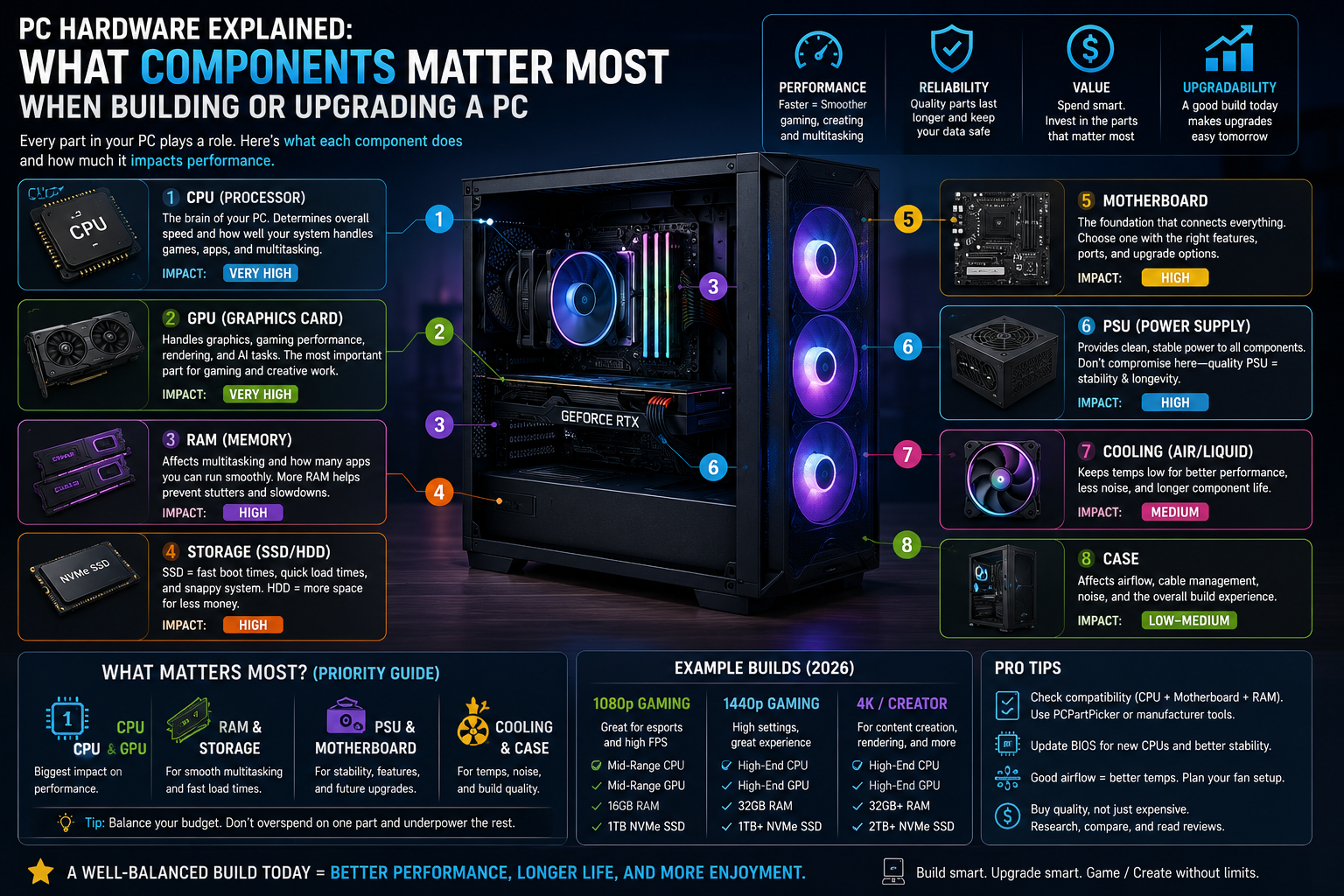
Building or upgrading a PC can feel overwhelming the first time you look at a parts list. CPUs, GPUs, RAM, motherboards, storage, power supplies — each one comes with its own set of specs, and marketing language doesn’t always make it clear which numbers actually matter for how you’ll use the machine.
This guide breaks down each core component, explains what to prioritize, and helps you figure out where to spend your budget whether you’re building a PC from scratch or upgrading an existing one.
Start With Your Use Case, Not the Parts List
Before comparing components, get clear on what you’ll actually do with the machine most of the time. A PC built for competitive gaming looks different from one built for video editing, software development, or general home and office use. Matching your budget to your actual workload — rather than chasing the biggest number on every spec sheet — is the single most useful thing you can do before buying anything.
CPU: The Brain of the System
The processor (CPU) handles general computing tasks — everything from running your operating system to processing game logic to compiling code. Two things matter most:
- Core count — more cores help with multi-threaded workloads like video rendering, compiling code, or running multiple virtual machines.
- Clock speed and single-thread performance — this matters more for gaming and everyday responsiveness, where many tasks still rely on a single fast core rather than many cores working in parallel.
Unlike RAM or storage, the CPU usually can’t be swapped without also replacing the motherboard (since it has to match the CPU’s socket type), so it’s worth researching carefully before you commit to a platform.
GPU: The Component That Matters Most for Gaming and Graphics Work
The graphics card (GPU) renders images, video, and — increasingly — handles AI workloads. If you’re gaming, the GPU is typically where your budget should go first, since it has the biggest direct impact on frame rates and visual quality. If you’re doing 3D rendering, video editing, or local AI/ML work, GPU memory (VRAM) becomes a critical spec — larger, more demanding workloads need more VRAM to avoid bottlenecks.
For general productivity, web browsing, and office work, a dedicated GPU usually isn’t necessary — integrated graphics built into many modern CPUs are enough.
RAM: More Important Than People Expect
RAM (memory) determines how many applications and browser tabs you can run smoothly at once without your system slowing down. It’s often called the “silent” component because it doesn’t directly determine top-end performance the way a CPU or GPU does — but running short on RAM causes noticeable slowdowns no matter how powerful your other components are.
A few practical notes:
- Match RAM speed to what your CPU platform is designed to support — buying faster RAM than your system can use doesn’t help.
- Installing RAM in matched pairs (dual-channel) is generally more stable than mixing a single stick now and adding another later.
- On many modern laptops, RAM is soldered to the motherboard and can’t be upgraded after purchase — so it’s worth buying enough upfront if you’re not building a desktop.
Storage: SSD vs. HDD, and Why NVMe Matters
Storage affects how fast your system boots, how quickly applications open, and how fast files transfer. The three tiers, from slowest to fastest:
- Traditional hard drives (HDDs) — cheap and good for bulk storage (backups, media libraries), but slow for anything else.
- SATA SSDs — a large step up in speed over HDDs, still commonly used as a budget-friendly solid-state option.
- NVMe SSDs — the fastest consumer option, connecting directly through PCIe lanes rather than the older SATA interface. This is generally the best choice for your primary drive (operating system and frequently used applications) in a new build.
A common and cost-effective approach: install your operating system and main programs on a fast NVMe SSD, and add a larger, cheaper HDD as secondary storage for files you don’t need instant access to.
Motherboard: The Backbone Connecting Everything
The motherboard doesn’t add raw performance on its own, but it determines what you can build and upgrade later. Key things to check:
- CPU socket compatibility — the motherboard must match your chosen CPU’s socket type.
- Form factor — ATX boards offer the most expansion room (multiple PCIe slots and RAM slots); Micro-ATX is a size/expandability compromise; Mini-ITX is for small builds but limits future upgrades.
- RAM slots and M.2 storage slots — more slots mean more flexibility to upgrade RAM and storage down the line without replacing the whole board.
Make sure your case supports whichever motherboard size you choose before buying either one.
Power Supply (PSU): Don’t Underspend Here
The power supply converts wall power into the voltages your components need. An undersized or low-quality PSU can cause instability, random crashes, and in rare cases can damage other components. When choosing a PSU:
- Match the wattage to your GPU’s power requirements — this is usually the single biggest power draw in the system.
- Look for 80 Plus Gold or Platinum efficiency ratings, which waste less energy as heat and generally indicate more reliable internal components.
- Leave some wattage headroom for future upgrades rather than buying the exact minimum for your current build.
Cooling: Often Overlooked, but It Affects Everything Else
Modern CPUs and GPUs can generate significant heat under load, and poor cooling leads to thermal throttling — where components automatically slow themselves down to avoid overheating, costing you performance you already paid for. A case with decent airflow and an appropriately sized CPU cooler (air or liquid, depending on your CPU’s power draw) protects the investment you’ve made in the rest of the system.
Building vs. Upgrading: How to Prioritize Spending
If you’re upgrading an existing PC rather than building new, prioritize based on where your current bottleneck actually is:
- If everyday tasks feel sluggish with multiple apps open, RAM is often the most noticeable and affordable upgrade.
- If games or creative software feel behind the times, the GPU (for gaming/rendering) or CPU (for everything else, especially multitasking) is usually the next step.
- If your system takes a long time to boot or load files, moving from an HDD or SATA SSD to an NVMe SSD produces one of the most noticeable everyday improvements for the cost.
- Check your power supply’s wattage and connectors before adding a more powerful GPU or CPU — this is a common bottleneck people overlook.
Final Thoughts
There’s no single “best” PC build — the right combination of parts depends entirely on what you’ll actually use the machine for. Start with your use case, prioritize the components that affect that use case most (GPU for gaming, CPU and RAM for multitasking and productivity, fast storage for everyday responsiveness), and make sure your motherboard and power supply have enough headroom to support what you’re building without becoming the next bottleneck.
Further Reading
Tom’s Hardware – A comprehensive, byline-authored step-by-step guide to building a PC, covering how to choose each component (CPU, GPU, motherboard, RAM, storage, PSU) and the actual assembly process, written by senior editors who cover this beat full-time. Click here to open the guide.
Tom’s Hardware – A beginner-focused tips guide on avoiding the most common first-build mistakes — from matching components so nothing bottlenecks the rest of the system to handling parts safely to avoid damage before you even power on. Click here to open the guide.
Tom’s Guide – A first-hand, experiential take on picking PC parts, walking through the reasoning and trade-offs behind each component choice rather than just listing specs to hit. Click here to open the guide.
Newegg – A retailer-published upgrade guide explaining how motherboard form factor, power supply headroom, and efficiency ratings (80 Plus Gold/Platinum) affect a build’s stability and future upgrade path. Click here to open the guide.