
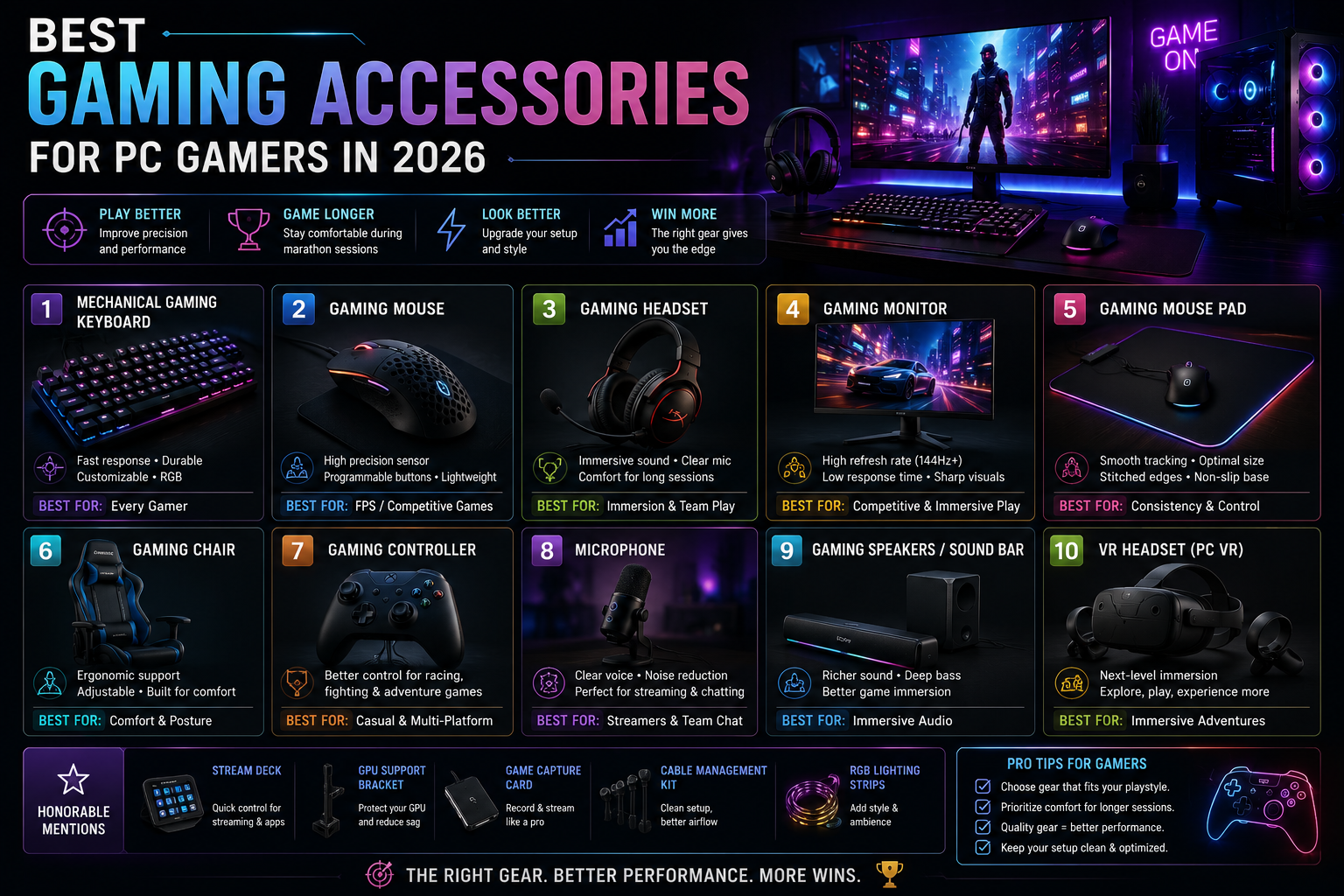
A powerful PC only tells half the story of a great gaming setup. The other half comes down to accessories — the mouse that lets you land a precise flick shot, the chair that keeps you comfortable through a long raid, the headset that lets you hear footsteps before you see them. The right gaming peripherals don’t just add convenience; they directly affect comfort, control, and how long you can enjoy a session before fatigue sets in.
The challenge in 2026 is that the gaming accessory market is enormous. Nearly every category has dozens of options at every price point, and not all of them are worth your money. Some accessories genuinely improve how you play. Others are marketed heavily but add little beyond aesthetics.
This guide walks through the accessory categories that matter most for PC gamers, what to look for in each, and — just as importantly — what you can safely skip if you’re working with a limited budget.
Why Gaming Accessories Matter
A gaming PC provides the raw performance, but accessories are the interface between you and the game. A mouse with inconsistent tracking can cost you an in-game duel that has nothing to do with your reflexes. A keyboard with mushy, imprecise keys can slow your reaction time in competitive titles. An uncomfortable chair or poorly positioned monitor can turn a two-hour session into a genuinely uncomfortable experience.
Beyond performance, accessories also affect organization and comfort. A cluttered desk with tangled cables is distracting. A monitor at the wrong height can strain your neck over time. These are the kinds of problems accessories are specifically designed to solve — and solving them tends to make the difference between a setup that feels frustrating and one that feels effortless.
With that context in mind, here’s a category-by-category breakdown of the accessories worth considering for a PC gaming setup [Internal Link: Gaming].
Gaming Mouse
What it does: A gaming mouse is built for precise, consistent cursor tracking, with sensors and shapes optimized for fast or fine-grained movement.
Why a gamer might need it: Standard office mice are designed for general use, not for the rapid, precise movements competitive or fast-paced games demand. A gaming mouse offers more consistent sensor performance and often a more ergonomic shape for extended use.
Features to look for:
- Sensor accuracy and consistency at the DPI range you actually use
- Shape and grip style (palm, claw, or fingertip) that matches your hand
- Weight, since lighter mice suit fast-flick genres while heavier mice suit precision aiming
- Wired vs. wireless, with modern wireless options offering strong responsiveness for most players
- Programmable buttons, useful for MMO or MOBA players who need quick access to abilities
Who should buy it: Anyone who plays competitive shooters, MOBAs, or fast-paced games where cursor precision matters, as well as anyone replacing an old or uncomfortable mouse.
Who may not need it: Casual or turn-based game players who aren’t sensitive to small differences in tracking or response time may not notice much benefit over a solid general-purpose mouse.
Common mistakes to avoid: Buying based on DPI numbers alone. A high maximum DPI doesn’t mean better accuracy — sensor quality and how the mouse feels in your hand matter far more than the number on the box.
Mechanical Gaming Keyboard
What it does: A mechanical keyboard uses individual mechanical switches under each key, offering more consistent actuation and tactile or audible feedback compared to standard membrane keyboards.
Why a gamer might need it: Mechanical switches tend to register keypresses more consistently, which matters in games requiring rapid or repeated inputs. Many gamers also simply prefer the feel and durability of mechanical switches over time.
Features to look for:
- Switch type, since linear, tactile, and clicky switches all feel and sound different
- Keyboard size (full-size, tenkeyless, or compact) based on desk space and whether you need a numpad
- Build quality and keycap material, which affect durability and feel over years of use
- N-key rollover or anti-ghosting support, useful for games requiring multiple simultaneous key presses
- Wired vs. wireless, with wired connections still common for competitive play due to consistent input latency
Who should buy it: Gamers who play input-intensive titles, type frequently outside of gaming, or simply want a more durable and satisfying typing experience.
Who may not need it: Casual gamers who play primarily controller-based or slower-paced games may not gain much from switching to mechanical switches.
Common mistakes to avoid: Choosing a switch type based only on online recommendations without considering personal preference. Switch feel is subjective, and trying a few types in person, if possible, is far more reliable than reviews alone.
Gaming Headset
What it does: A gaming headset combines audio output with a built-in microphone, designed for both in-game sound and voice communication.
Why a gamer might need it: Positional audio cues — footsteps, gunfire direction, environmental sounds — matter in many competitive games. A dedicated gaming headset is generally tuned to make these cues clearer than standard headphones or laptop speakers.
Features to look for:
- Comfort for extended wear, including ear cup material and clamping force
- Microphone clarity, especially important for team-based games or streaming
- Wired vs. wireless, with wired options generally offering the most consistent latency
- Soundstage and positional audio quality, useful for competitive shooters
- Compatibility with your platform, since some headsets are PC-only or console-only
Who should buy it: Gamers who play team-based or competitive games where audio cues and voice communication matter.
Who may not need it: Gamers who already own quality headphones and a separate microphone may not need a combined headset, and some prefer keeping these as separate components for better individual quality.
Common mistakes to avoid: Prioritizing flashy marketing terms like “7.1 surround sound” over actual comfort and microphone clarity, which matter more for most players day to day.
Large Mouse Pad / Desk Mat
What it does: A large mouse pad or desk mat provides a consistent surface for both your mouse and keyboard, often covering most or all of the desk.
Why a gamer might need it: Consistent surface texture affects mouse tracking accuracy, and a full desk mat also keeps your keyboard and mouse on the same level surface, which some players find more comfortable.
Features to look for:
- Surface texture, since speed and control surfaces affect glide differently
- Size, matched to your desk and how much room your keyboard and mouse setup needs
- Base material and stitching, which affect durability and whether edges fray over time
- Thickness, since thicker mats can feel more comfortable for wrist support
Who should buy it: Anyone using a hard or uneven desk surface, or players who want a consistent, larger tracking area for lower-sensitivity mouse settings.
Who may not need it: Gamers already satisfied with a smaller, high-quality mouse pad likely won’t see a meaningful difference from upgrading to a full desk mat.
Common mistakes to avoid: Choosing a mat based on appearance alone. Surface texture has a much bigger practical impact on gameplay than color or design.
Gaming Controller
What it does: A gaming controller provides analog input for PC games that support controller play, including many third-person, racing, and platform titles.
Why a gamer might need it: Some game genres are simply easier or more comfortable to play with a controller than a mouse and keyboard, and many PC gamers use both depending on the game.
Features to look for:
- Compatibility with PC, since some controllers require additional software or drivers
- Build quality of the joysticks, since drift issues are a common long-term complaint
- Wired vs. wireless, with wireless offering convenience and wired offering the most reliable connection
- Customization options, such as remappable buttons or adjustable trigger sensitivity
Who should buy it: Players who game across genres, particularly those who play platformers, racing games, or third-person titles more comfortably with a controller.
Who may not need it: Players who exclusively play competitive shooters or strategy games, where mouse and keyboard input is generally preferred, may not need a controller at all.
Common mistakes to avoid: Buying the cheapest available controller without checking reviews for joystick durability, since analog stick drift is a common issue with lower-quality models.
Monitor Arm
What it does: A monitor arm mounts your display above the desk surface, allowing you to adjust height, angle, and distance instead of relying on the monitor’s built-in stand.
Why a gamer might need it: Proper monitor positioning reduces neck and eye strain during long sessions, and a monitor arm frees up desk space that a bulky stand would otherwise take up.
Features to look for:
- Weight capacity, matched to your specific monitor’s weight
- VESA mount compatibility, since not all monitors support the same mounting pattern
- Range of adjustment, including height, tilt, and rotation
- Clamp or grommet mounting, depending on your desk type
Who should buy it: Anyone using a single large monitor or multi-monitor setup who wants better ergonomics and more usable desk space [Internal Link: Monitors].
Who may not need it: Gamers already comfortable with their monitor’s current height and angle, or those using a monitor light enough that repositioning isn’t a hassle, may not need to upgrade.
Common mistakes to avoid: Not checking your monitor’s weight and VESA compatibility before buying, which can result in a mismatched or unstable setup.
USB Hub
What it does: A USB hub expands the number of available USB ports, which is especially useful for gaming setups with several peripherals — mouse, keyboard, headset, controller, and webcam all competing for ports [Internal Link: PC Hardware].
Why a gamer might need it: Many PC cases and motherboards offer a limited number of accessible USB ports, and gaming setups tend to accumulate peripherals quickly.
Features to look for:
- Number and type of ports needed for your specific peripherals
- Data transfer speed, particularly relevant for higher-bandwidth devices like webcams
- Powered vs. unpowered hubs, since some peripherals draw more power than an unpowered hub can reliably supply
- Build quality and cable length for convenient desk placement
Who should buy it: Anyone who has run out of usable USB ports or wants to keep peripherals organized and easily accessible.
Who may not need it: Gamers with a case or motherboard that already has enough front and rear USB ports for their peripherals.
Common mistakes to avoid: Overloading an unpowered hub with multiple power-hungry devices, which can cause connectivity issues or reduced performance.
Webcam
What it does: A webcam captures video for streaming, video calls, or content creation.
Why a gamer might need it: Built-in laptop webcams are often low quality, and most desktop PCs don’t include a webcam at all. A dedicated webcam is necessary for anyone streaming or regularly using video calls.
Features to look for:
- Resolution and frame rate, particularly important for streaming
- Low-light performance, since gaming rooms are often dimly lit
- Field of view, adjusted based on desk setup and distance from camera
- Autofocus quality and mounting compatibility
Who should buy it: Streamers, content creators, or anyone who regularly uses video calls from their gaming setup.
Who may not need it: Gamers who don’t stream or use video calls from their PC setup likely don’t need to invest in a dedicated webcam.
Common mistakes to avoid: Assuming a higher resolution number always means better video quality — low-light performance and lens quality often matter more in typical indoor lighting.
Microphone
What it does: A dedicated microphone captures clearer audio than most built-in or headset microphones, useful for streaming, recording, or high-quality voice communication.
Why a gamer might need it: For anyone creating content or communicating extensively with teammates, a dedicated microphone typically offers noticeably clearer audio than a headset mic.
Features to look for:
- Microphone type (dynamic or condenser), which affects sound characteristics and background noise sensitivity
- Connection type, USB for simplicity or XLR for more advanced audio setups
- Build quality and included accessories, such as a stand or shock mount
- Polar pattern, which determines how the microphone picks up sound from different directions
Who should buy it: Streamers, podcasters, or gamers who communicate frequently in voice chat and want clearer audio quality [Internal Link: Audio].
Who may not need it: Casual gamers who occasionally use voice chat are usually well served by a quality headset microphone instead.
Common mistakes to avoid: Buying a high-end condenser microphone without proper acoustic treatment, since condenser mics are more sensitive to room echo and background noise.
Cable Management Accessories
What it does: Cable management accessories — clips, sleeves, trays, and channels — organize the cables running to and from your peripherals, monitor, and PC.
Why a gamer might need it: A tangle of cables isn’t just visually messy; it can also get in the way of mouse movement, make cleaning harder, and increase the chance of accidentally unplugging something mid-session.
Features to look for:
- Type suited to your setup, such as under-desk trays, adhesive clips, or cable sleeves
- Capacity for the number of cables you actually need to manage
- Ease of installation and removal, especially if you rearrange your desk often
Who should buy it: Anyone with a visibly cluttered desk or cables that interfere with mouse movement or foot space.
Who may not need it: Gamers with already minimal or well-organized cabling may not need additional accessories.
Common mistakes to avoid: Over-purchasing cable management products before mapping out your actual cable routes, which often leads to buying the wrong size or type.
Gaming Desk Accessories
What it does: This covers smaller additions — headphone stands, desk mats, adjustable lighting, and controller stands — that improve organization and comfort without directly affecting gameplay.
Why a gamer might need it: These accessories help keep a gaming desk functional and comfortable over time, even though they don’t change performance directly [Internal Link: Accessories].
Features to look for:
- Practical function first, such as whether a stand actually fits your headset or controller
- Build stability, particularly for anything holding up equipment
- Desk space impact, since some accessories add clutter rather than reducing it
Who should buy it: Gamers looking to fine-tune comfort and organization once the core peripherals are already in place.
Who may not need it: Anyone still deciding on core accessories like a mouse, keyboard, or headset should generally prioritize those first.
Common mistakes to avoid: Treating desk accessories as a priority purchase before addressing more impactful items like a mouse, keyboard, or monitor setup.
Comparison Table: Gaming Accessories at a Glance
| Accessory | Main Benefit | Most Important Feature | Best For |
|---|---|---|---|
| Gaming Mouse | Precise, consistent tracking | Sensor accuracy and shape | Competitive and fast-paced games |
| Mechanical Keyboard | Consistent, durable key input | Switch type | Input-intensive or competitive games |
| Gaming Headset | Positional audio and voice chat | Comfort and microphone clarity | Team-based and competitive games |
| Large Mouse Pad / Desk Mat | Consistent tracking surface | Surface texture | Lower-sensitivity mouse users |
| Gaming Controller | Analog input for supported genres | Joystick build quality | Platformers, racing, third-person games |
| Monitor Arm | Ergonomic display positioning | Weight capacity and VESA compatibility | Single or multi-monitor setups |
| USB Hub | More available ports | Powered vs. unpowered | Setups with several peripherals |
| Webcam | Better video quality | Low-light performance | Streamers and video call users |
| Microphone | Clearer voice audio | Microphone type | Streamers and frequent voice chat users |
| Cable Management | Cleaner, safer desk | Fit for your specific cable routes | Cluttered or crowded desks |
How to Choose Gaming Accessories on a Budget
You don’t need to buy every category at once, and you definitely don’t need the most expensive version of each. A practical approach:
- Start with what you touch most. Your mouse and keyboard affect nearly every gaming session, so they’re usually worth prioritizing over less frequently used accessories.
- Fix discomfort before adding extras. If your current setup causes physical discomfort — wrist strain, neck strain, poor audio — address that before adding accessories that don’t solve an existing problem.
- Buy one upgrade at a time. Spacing out purchases lets you actually notice whether an accessory made a difference before spending more.
- Compare specifications, not marketing language. Terms like “pro-grade” or “esports-level” aren’t standardized. Look at the actual specifications, and compare prices, warranties, and reviews across retailers before buying [Internal Link: Buying Guides].
- Consider used or previous-generation models. Older generations of mice, keyboards, and headsets often perform very similarly to newer versions at a lower price [Internal Link: Best Picks].
Gaming Accessories You Don’t Actually Need
Not every accessory on the market meaningfully improves your gaming experience. A few categories are worth approaching with caution:
- Accessories bought purely for appearance, such as excessive RGB lighting add-ons, which don’t affect performance or comfort.
- Duplicate audio devices, like buying both a high-end gaming headset and a separate premium microphone if you don’t stream or record regularly.
- Extremely high-end controllers or mice with features aimed at professional esports players, if you play casually and wouldn’t use those extra features.
- Accessories bundled as “must-have kits” that include items you don’t actually need just to access a discount on the one item you do want.
The most effective gaming setups are usually built intentionally, one useful accessory at a time, rather than assembled from a bundle of everything available.
How to Build a Gaming Setup Step by Step
- Start with your PC and monitor, since these form the foundation everything else supports.
- Add a mouse and keyboard suited to the games you play most, prioritizing comfort and consistency over specific brand reputation.
- Address audio next, choosing a headset or separate headphones and microphone based on whether you stream, call, or just play solo.
- Improve ergonomics, adding a monitor arm or adjusting your chair and desk height if you experience discomfort during longer sessions.
- Organize your desk, using cable management accessories and a mouse pad or desk mat to keep the workspace functional.
- Add content creation tools last, such as a webcam or dedicated microphone, once you know you’ll actually use them regularly.
- Reassess periodically, since your needs may change as you play different games or take on new activities like streaming [Internal Link: Reviews].
Frequently Asked Questions
Do I really need a gaming mouse instead of a regular one? Not always. If you play casually or primarily enjoy slower-paced games, a quality general-purpose mouse may be enough. Gaming mice offer the most benefit for fast-paced or competitive titles where tracking precision matters.
Is a mechanical keyboard worth it for gaming? It depends on what you play and your personal preference for key feel. Many gamers find mechanical switches more satisfying and consistent, but membrane keyboards can still work well for less input-intensive games.
Should I buy a wired or wireless gaming mouse? Both can perform well in 2026. Wired mice remove any concern about latency or battery life, while modern wireless mice have closed much of that performance gap for most players. The choice often comes down to personal preference for cable-free movement.
Do I need both a gaming headset and a separate microphone? Only if you’re serious about streaming or content creation, where audio clarity matters more. For casual voice chat and gaming, a quality headset with a built-in microphone is usually sufficient.
Is a monitor arm necessary for gaming? It’s not essential, but it can meaningfully improve ergonomics and free up desk space, especially for larger monitors or multi-monitor setups.
What’s the most important accessory to buy first? For most gamers, a comfortable and accurate mouse tends to have the biggest immediate impact on gameplay, followed by a keyboard suited to the games you play most.
Are expensive gaming accessories always better? Not necessarily. Price often reflects build materials, brand, or extra features rather than a guaranteed improvement in performance. Comparing specifications and reviews is more reliable than assuming a higher price means better quality.
Conclusion
Building a strong PC gaming setup doesn’t require buying every accessory on the market at once. The most effective approach is to prioritize the items you interact with constantly — a mouse and keyboard suited to your games — before moving on to audio, ergonomics, and desk organization.
Along the way, it’s worth comparing specifications, prices, and reviews across retailers rather than relying on marketing claims alone. A setup built intentionally, accessory by accessory, based on what actually improves your comfort and gameplay, will generally serve you far better than one assembled all at once from whatever’s trending.
TechRadar – Individually tested and reviewed gaming peripherals — mice, keyboards, headsets, and mouse pads — from an established tech publication’s dedicated computer gaming accessories section, with named reviewers and hands-on testing. Click here to open the guide.
GAMES.GG – A category-by-category roundup covering headsets, mice, chairs, desks, and controllers for both casual and competitive gamers, referencing specific well-known models and what makes each one stand out. Click here to open the guide.
Hone – A practical guide that goes beyond product picks to explain the actual mechanics behind gaming peripherals — DPI settings, polling rate, rapid trigger keyboards, and how to tell whether input lag or frame pacing is really the problem before buying new gear. Click here to open the guide.
One thought on “Best Gaming Accessories for PC Gamers in 2026”