
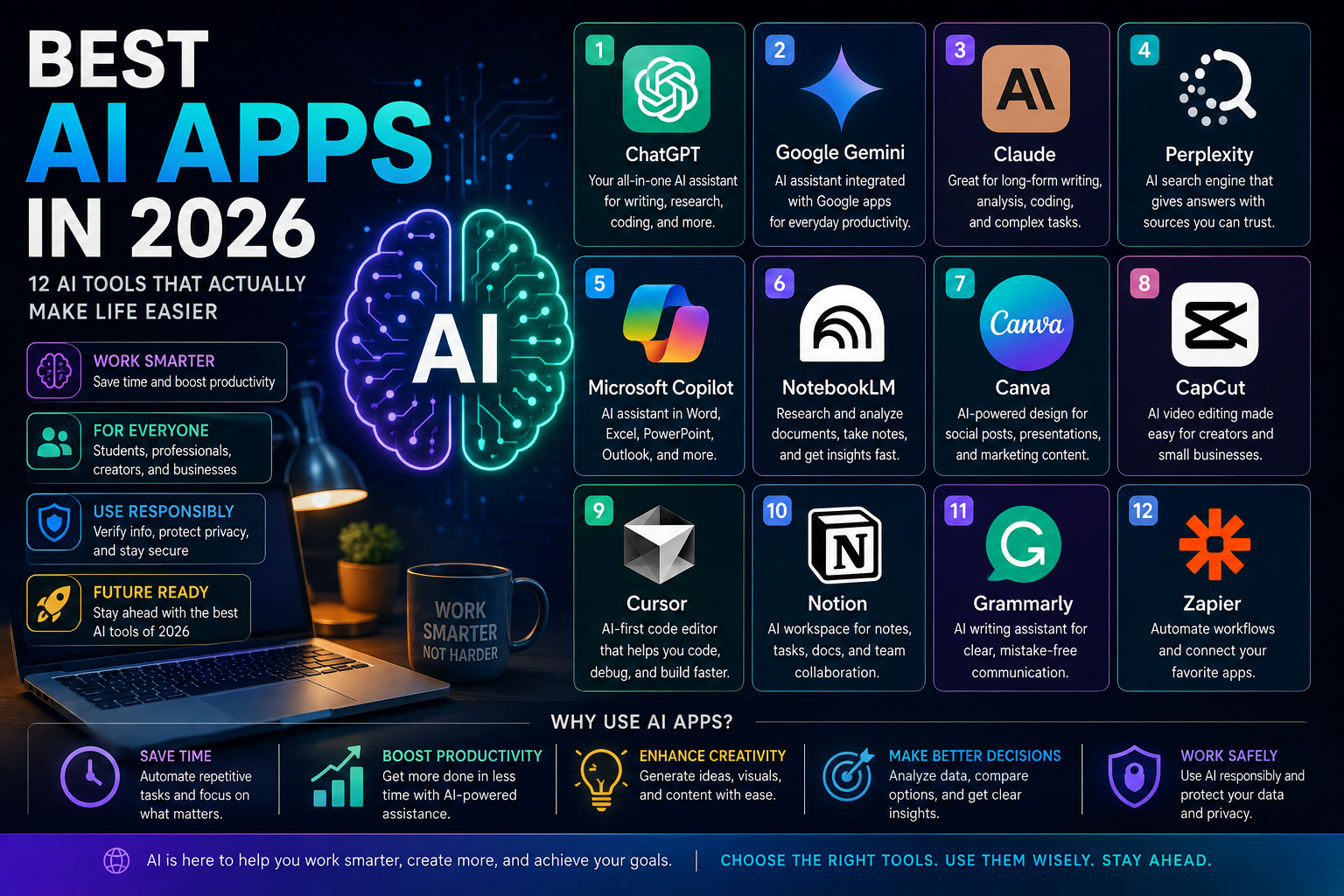
A few years ago, “using AI” mostly meant typing a question into a chatbot and reading a wall of text back. That’s no longer the whole story. AI apps in 2026 read your documents, help you write and rewrite, generate images and video, review your code, organize your notes, and quietly automate the repetitive parts of your workday. Some of this genuinely saves time. Some of it is noise dressed up as innovation.
The point of this guide isn’t to convince you to install every AI app that exists. It’s the opposite: to help you find the two or three tools that actually fit how you work, and skip the rest. Below are 12 AI apps and platforms worth knowing about in 2026 — what each one is genuinely good at, who it suits, where it falls short, and whether a usable free option exists. Pricing and usage limits for AI products change often, so treat the figures here as a general guide and check each provider’s official pricing page before you commit.
1. ChatGPT — General-Purpose AI Assistant
ChatGPT, from OpenAI, remains the most widely recognized AI assistant, and it earns that position by being genuinely flexible rather than through hype alone.
What it’s good for:
- Writing and rewriting emails, essays, and everyday content
- Brainstorming ideas, outlines, and options
- Research assistance and summarizing long material
- Learning new topics through back-and-forth explanation
- Basic-to-intermediate coding help
- Analyzing data you upload
- Working with documents, images, and other file types
Who benefits most: ChatGPT is a solid all-purpose starting point for students, professionals, and anyone who wants one flexible tool rather than several specialized ones.
Free vs. paid: ChatGPT offers a free tier alongside several paid plans, including a mid-tier Plus subscription and a higher-usage Pro tier for heavier users. As of 2026, OpenAI has also introduced additional tiers positioned between free and Plus, and the free tier in some regions now includes advertising. Exact usage limits, model access, and pricing shift regularly, so verify the current lineup and limits at OpenAI’s official pricing page before choosing a plan.
Limitations: Like any AI assistant, ChatGPT can produce confident-sounding answers that are wrong, especially on niche or fast-changing topics, so it’s worth double-checking anything factual or high-stakes.
2. Google Gemini — Best for Google Ecosystem Users
Gemini is Google’s AI assistant, and its biggest advantage isn’t necessarily raw capability — it’s how deeply it’s woven into products many people already use daily: Gmail, Docs, Sheets, and Search.
What it’s good for:
- Research that benefits from Google’s search integration
- Writing and summarizing content
- Working directly inside Gmail, Docs, and Sheets (on eligible plans)
- Understanding and answering questions about images
- General productivity tasks tied to the Google Workspace
Who should consider it: If your work or school life already runs through a Google account — Gmail for email, Docs for writing, Sheets for spreadsheets — Gemini’s integration advantage is hard to replicate with a separate standalone tool.
Free vs. paid: Gemini has a genuinely usable free tier accessible with any personal Google account. Google’s paid tiers, marketed as Google AI plans, unlock higher usage limits, more advanced models, and deeper integration into Gmail, Docs, and Sheets. Google has restructured this lineup more than once in 2026, adding and adjusting tiers between the free plan and its higher-end offerings, so check Google’s current plan page for exact pricing and what’s included at each level.
Limitations: Some of the most useful in-app features (like AI-assisted writing directly inside Gmail or Sheets) are typically gated behind a paid plan rather than available for free.
3. Claude — Strong Option for Writing and Coding
Claude, made by Anthropic, has built a reputation particularly around long-form writing, careful reasoning, and coding support.
What it’s good for:
- Long-form writing: articles, reports, scripts, and detailed documents
- Analyzing and summarizing lengthy documents or files
- Coding assistance, including reviewing and explaining code
- Brainstorming and structuring complex ideas
- Working through research questions that require careful, step-by-step explanation
Strengths: Claude is often praised for producing writing that reads more naturally and for handling long documents and nuanced instructions well.
Limitations: Claude does not have the same breadth of third-party plugin ecosystems or consumer brand recognition as some competitors, and like all AI assistants, it can still make mistakes on facts or specifics.
Free vs. paid: Claude offers a free tier that, as of 2026, runs on a current mid-tier model rather than an older, weaker one — a meaningful upgrade from how free tiers used to work. Paid plans raise usage limits and add features like expanded coding tools. Because Anthropic has adjusted its free and paid tiers multiple times in 2026, confirm current limits and pricing at Anthropic’s official site.
It’s worth being clear here: Claude is a strong option for writing and coding, not a universally superior tool. Which assistant performs best for you often comes down to the specific task and your personal preference for its writing style.
4. Perplexity — AI Search and Research
Perplexity positions itself less as a chatbot and more as an AI-powered search engine, and that framing matters for how it’s best used.
How it differs from traditional search: Instead of returning a list of links you have to click through, Perplexity reads across multiple sources and gives you a synthesized answer with citations attached, so you can see exactly where each claim comes from.
What it’s good for:
- Getting source-linked answers to research questions
- Comparing information across multiple sources quickly
- Finding recent information on current topics
- Asking natural follow-up questions within the same research thread
- Speeding up fact-checking workflows by surfacing citations directly
Free vs. paid: Perplexity offers a free tier with unlimited basic searches but a capped number of more advanced “Pro” searches per day. Paid tiers increase that daily allowance substantially and add access to additional AI models, file uploads, and other research tools. Perplexity’s pricing structure has changed more than once in 2026, including new tiers and a discounted student plan in some markets, so check Perplexity’s pricing page for current numbers.
Why you should still verify sources: Citations reduce the guesswork, but they don’t eliminate it. Perplexity can still misread or overstate what a source actually says, so for anything important — health, legal, financial, or academic claims — click through and read the original source yourself rather than trusting the AI-generated summary alone.
5. Microsoft Copilot — AI for Microsoft Users
Copilot is Microsoft’s answer to the same question Google is answering with Gemini: how do you put AI directly inside the tools people already use for work?
What it’s good for:
- Drafting and rewriting content in Word
- Summarizing and drafting emails in Outlook
- Building first drafts of presentations in PowerPoint
- Analyzing data and suggesting formulas in Excel
- Summarizing meetings (availability varies by plan and setup)
- General day-to-day productivity across the Microsoft 365 suite
Who should consider it: People and teams already paying for Microsoft 365 get the most value here, since many of Copilot’s most useful features only activate inside Word, Excel, PowerPoint, Outlook, and OneNote — not as a standalone chatbot.
Free vs. paid: A basic version of Copilot is available for free through the web and Microsoft Edge, generally for everyday questions and content generation. Deeper integration into Word, Excel, PowerPoint, Outlook, and OneNote is typically tied to a Microsoft 365 subscription plus, in many cases, an additional Copilot subscription. Exactly which features are bundled where has shifted across 2026, so confirm current plan details directly from Microsoft before assuming a specific feature is included in your existing subscription.
Limitations: The free, web-only version doesn’t have access to your personal documents or emails — for that, you need the paid, integrated version.
6. NotebookLM — Research and Document Analysis
NotebookLM, from Google, takes a fundamentally different approach than a general chatbot: instead of drawing on broad internet knowledge, it answers strictly based on the documents, links, and files you feed it.
What makes it different: Because NotebookLM grounds its answers in your own uploaded sources rather than its general training data, it’s less prone to making things up about the specific material you’re working with — a meaningful advantage for research and study use.
What it’s good for:
- Uploading and querying multiple source documents at once
- Summarizing long or dense material
- Generating study materials like practice questions, summaries, and audio overviews
- Asking specific questions and getting answers tied directly to your uploaded sources
- Organizing scattered notes and materials into a coherent structure
Who benefits most: Students studying from lecture notes and textbooks, researchers working across many papers, and professionals synthesizing reports all get real value from a tool that stays anchored to their own material rather than wandering into general web knowledge.
Free vs. paid: NotebookLM has a functional free tier with meaningful limits on the number of notebooks, sources per notebook, and daily interactions. Paid tiers, accessed through Google’s AI subscription plans, multiply those limits substantially. Because these limits are tied to Google’s broader (and frequently updated) AI plan structure, check Google’s current NotebookLM documentation for exact figures.
7. Canva — AI-Powered Design and Content Creation
Canva has long been the go-to design tool for people without formal design training, and its AI features (bundled under what Canva calls Magic Studio) extend that accessibility further.
What it’s good for:
- Social media graphics and post templates
- Presentation slides and decks
- Video thumbnails
- Marketing materials like flyers and ads
- Simple visual content for non-designers
- AI-assisted tools for background removal, image expansion, and text generation within designs
Who should use it: Small business owners, marketers, students, content creators, and anyone who needs professional-looking visuals without learning dedicated design software will find Canva’s combination of templates and AI tools genuinely time-saving.
Where professional designers may still need more: Canva’s AI tools are built for speed and accessibility, not pixel-level precision. Designers working on complex branding systems, print production, or highly customized layouts often still reach for more advanced software alongside or instead of Canva.
Free vs. paid: Canva’s free tier includes a real set of AI design credits and covers most everyday needs. Once those credits are used, continuing to use the AI-specific tools generally requires Canva Pro, a paid subscription that also unlocks unlimited premium templates, stock assets, and features like resizing designs across formats. Canva’s AI credit system and pricing have been updated multiple times in 2026, so check Canva’s current plans before assuming what’s included in each tier.
8. CapCut — AI-Assisted Video Editing
CapCut, developed by ByteDance, has become one of the most widely used tools for short-form video editing, particularly for content aimed at social platforms.
What it’s good for:
- Editing short-form videos for social media
- Automatic captions
- Multi-track timeline editing with transitions and effects
- AI-assisted tools like background removal and text-to-speech voiceovers
- Fast turnaround on trend-driven social content
Who should use it: Content creators, social media managers, and casual creators making short-form video will find CapCut’s free tier genuinely capable — the core editing toolkit, templates, and basic AI tools cover a large share of common use cases without paying anything.
Limitations: More advanced features — such as 4K export, an expanded AI toolset, and additional cloud storage — typically require a paid tier. Some AI tools on the free plan are also limited by monthly credit allowances rather than being fully unlimited.
A note on regional availability: CapCut’s feature set, pricing, and even its availability have varied by region and have been affected by regulatory developments in different countries at different times. Don’t assume a feature or the app itself is available identically everywhere — check current availability and terms for your specific country before relying on it.
9. Cursor — AI-Assisted Coding
Cursor is a code editor, built on the same foundation as Visual Studio Code, designed from the ground up around AI-assisted development rather than treating AI as an add-on extension.
How it’s changing development: Rather than bolting AI suggestions onto a traditional editor, Cursor integrates AI throughout the coding workflow — from inline code completion, to chat-based explanations, to multi-file editing agents that can plan and execute changes across an entire codebase.
What it’s good for:
- Generating code from natural-language descriptions
- Explaining unfamiliar or complex code
- Debugging and identifying issues
- Refactoring existing code
- Making coordinated changes across multiple files in an existing project
Who should use it: Developers who want AI woven directly into their editor, rather than switching between a browser tab and their code, are the core audience — from students learning to code to professional engineers working on established codebases.
An important caution: AI-generated code should always be reviewed, tested, and understood before being merged into a real project — not accepted blindly. AI coding tools are good at producing plausible-looking code, but “plausible” and “correct” are not the same thing, especially around edge cases, security, and business logic specific to your project.
Free vs. paid: Cursor offers a free “Hobby” tier with the full editor and a limited amount of AI usage, alongside paid tiers (commonly a mid-tier individual plan and higher-usage tiers above it) that increase AI request limits and unlock features like full codebase indexing and multi-file editing agents. Cursor’s pricing has shifted toward a credit-based system that varies by which underlying AI model you use, so check Cursor’s current pricing page for how the credits translate into real usage for your workflow.
10. Notion — Productivity and AI Workspace
Notion combines note-taking, documentation, task management, and knowledge organization into a single flexible workspace, with AI features layered on top.
What it’s good for:
- Centralizing notes, documents, and project plans in one place
- Task and project management with customizable views
- Building internal documentation or knowledge bases
- AI-assisted writing, summarizing, and search across your workspace
- Replacing a scattered mix of separate note and task apps with one connected system
Who benefits most: Notion suits people and teams who want one organized home for notes, projects, and documentation rather than juggling separate apps for each — freelancers organizing client work, students managing coursework, and teams building shared documentation all fit this pattern well.
Free vs. paid: Notion’s free plan works well for individual use and includes a limited trial of its AI features. As of 2026, Notion has shifted toward bundling its full AI capabilities (like AI-powered search and meeting notes) into its higher-tier Business and Enterprise plans rather than offering them as a small add-on, which is a meaningful change worth knowing about if AI features are your main reason for choosing Notion. Confirm current plan details and AI inclusion on Notion’s pricing page, since this has been an area of active change.
11. Grammarly — AI Writing Assistance
Grammarly focuses on a narrower but very practical job: catching grammar mistakes, improving clarity, and adjusting tone across virtually anywhere you type — email, documents, browser forms, and more.
What it’s good for:
- Catching grammar and spelling errors in real time
- Improving clarity and readability
- Rewriting sentences for tone or concision
- Adjusting tone for different audiences (formal, casual, persuasive, and so on)
- Supporting professional communication like emails and reports
How it improves communication without encouraging blind acceptance: Grammarly’s suggestions are just that — suggestions. It works best when you read each recommendation and decide whether it fits your intended meaning and voice, rather than accepting every rewrite automatically. Overusing its more aggressive rewrite features can flatten your own writing style into something more generic.
Free vs. paid: Grammarly’s free plan covers basic grammar and spelling checks, tone detection, and a limited monthly allowance of AI-assisted prompts. The paid Pro tier adds full-sentence rewrites, deeper tone and clarity suggestions, plagiarism detection, and a substantially higher AI prompt allowance. Grammarly restructured its plans more than once during 2026, so check Grammarly’s current pricing page for the latest tier names and limits.
12. Zapier — AI and Automation
Zapier isn’t an AI chatbot at all — it’s an automation platform that connects different apps together so information and tasks can move between them without manual work, with AI features layered into that automation.
How automation reduces repetitive work: Instead of manually copying information from one app to another, or remembering to send the same type of notification every time something happens, Zapier lets you set up a rule once — “when X happens in this app, do Y in that app” — and it runs automatically going forward.
Practical examples:
- Automatically moving new form submissions into a spreadsheet or CRM
- Sending a notification when a specific event occurs (a new sale, a new sign-up, a support ticket)
- Routing new leads to the right team member or list automatically
- Triggering a piece of AI-generated content when new material is added somewhere else
- Connecting business tools so data doesn’t need to be re-entered manually across systems
Who benefits most: Small business owners, freelancers, marketers, and teams with repetitive cross-app tasks are the clearest fit — the more manual, repetitive steps exist in your workflow, the more time Zapier can realistically save.
Free vs. paid: Zapier’s free plan includes a limited number of monthly automation “tasks” and restricts automations to simple, single-step workflows. Paid tiers raise the monthly task allowance substantially and unlock multi-step automations, more integrations, and AI-powered automation steps. Zapier’s pricing and task-counting rules have changed multiple times in 2026, and task consumption can add up faster than expected with multi-step automations, so review Zapier’s current pricing and task-calculation rules carefully before choosing a plan.
A word of caution on automation: Automation is most useful when it solves a genuinely repetitive problem you already have. Building elaborate automations for tasks you rarely do, or for workflows that aren’t yet stable, often adds more complexity — and more things that can silently break — than it saves in time.
Comparison Table
| App | Best For | Free Option | Platforms | Main Strength |
|---|---|---|---|---|
| ChatGPT | General-purpose AI assistance | Yes | Web, iOS, Android, Windows, macOS | Broad flexibility across writing, research, and coding |
| Google Gemini | Google ecosystem users | Yes | Web, iOS, Android, Gmail/Docs/Sheets integration | Deep integration with Google Workspace |
| Claude | Long-form writing and coding | Yes | Web, iOS, Android, desktop apps | Strong performance on long documents and nuanced writing |
| Perplexity | AI-powered research and search | Yes | Web, iOS, Android, browser extensions | Source-linked, citation-based answers |
| Microsoft Copilot | Microsoft 365 users | Yes (limited, web-based) | Web, Word, Excel, PowerPoint, Outlook, OneNote | Embedded directly in everyday Office work |
| NotebookLM | Research and document analysis | Yes | Web, mobile app | Answers grounded strictly in your own uploaded sources |
| Canva | Design and visual content | Yes | Web, iOS, Android, desktop | Fast, accessible design for non-designers |
| CapCut | Short-form video editing | Yes | iOS, Android, Windows, macOS, web | Full-featured free editor for social video |
| Cursor | AI-assisted coding | Yes (limited usage) | Windows, macOS, Linux | AI woven directly into the coding workflow |
| Notion | Notes, docs, and task organization | Yes | Web, iOS, Android, Windows, macOS | One connected workspace for notes and projects |
| Grammarly | Writing clarity and grammar | Yes | Browser extension, desktop, mobile keyboard | Real-time writing corrections almost anywhere you type |
| Zapier | App-to-app automation | Yes (limited tasks) | Web-based | Connects apps to eliminate repetitive manual work |
Free tier availability and feature limits change frequently. Confirm current details on each provider’s official pricing page before relying on this table for a purchase decision.
How to Choose the Right AI App
There’s no single “correct” AI app — the right choice depends entirely on what you’re actually trying to get done. As a starting point:
- For general everyday AI help: ChatGPT or Google Gemini
- For long documents and nuanced writing: Claude
- For research with source citations: Perplexity or NotebookLM
- For Microsoft-based work: Microsoft Copilot
- For design and visual content: Canva
- For short-form video: CapCut
- For coding: Cursor
- For organizing notes, tasks, and projects: Notion
- For eliminating repetitive manual work across apps: Zapier
These aren’t rankings — they’re starting points based on common use cases. Plenty of people use ChatGPT for coding, Claude for research, or Gemini for design brainstorming, and that’s perfectly reasonable. The best test is simple: try the tool on a real task from your actual workflow, not a generic demo prompt, and see whether it saves you meaningful time.
Free vs. Paid AI Apps
Why free tiers can be enough for casual users: Most of the tools on this list now offer free tiers that are more capable than “free” used to mean in software. If you use an AI app occasionally — a few questions a day, the odd document summary, basic design work — a free plan will likely cover your needs without hitting frustrating limits.
When paid plans become useful: Paid tiers generally make sense once you hit daily or monthly usage caps regularly, need access to more advanced AI models, require integration into tools you already pay for (like Word or Gmail), or need features built for professional or business use, like higher file limits, team collaboration, or priority support.
Compare actual features, not just price: The most expensive plan isn’t automatically the right one. Before upgrading, check specifically which features you’ll actually use — extra usage capacity, particular integrations, or specific tools — rather than assuming a higher price tier is a strictly better choice for your situation.
Why pricing and limits keep changing: AI companies have adjusted their pricing tiers, model access, and usage limits repeatedly throughout 2025 and 2026, sometimes more than once in the same year. Treat any specific number you read — including the ones in this article — as a snapshot rather than a permanent fact, and check the provider’s current pricing page before subscribing.
Privacy and Security
AI apps process whatever you type or upload, which makes a few habits worth building into how you use them:
- Don’t upload sensitive personal information unnecessarily. Avoid pasting things like full ID numbers, financial account details, or medical records into a general AI assistant unless the specific tool is built and certified for that kind of data.
- Be careful with confidential business documents. Uploading internal company data, client information, or proprietary material into a consumer AI tool can violate your employer’s policies or client agreements, even if it feels convenient in the moment.
- Check each service’s privacy policy. Data handling practices — including whether your conversations are used to improve the underlying AI model — vary between providers and between free and paid tiers of the same product.
- Understand how uploaded content may be handled. Some services offer settings to opt out of having your data used for model training; these settings are often available but not always turned on by default.
- Use stronger security practices for business use. If you’re using AI tools for work, prefer business or enterprise tiers with clearer data-handling commitments, and follow your organization’s IT and data policies rather than defaulting to personal accounts.
- Verify important information instead of trusting AI automatically. For anything with real consequences — legal, financial, medical, or academic — treat AI output as a draft or a starting point, not a final, verified answer.
Common AI App Mistakes
- Installing too many AI apps. Trying five different assistants for the same task usually creates more confusion than value. Pick one or two that fit your main workflows.
- Paying for multiple tools that perform the same task. It’s easy to end up subscribed to two or three AI writing or chat tools that overlap heavily in what they do.
- Trusting AI answers without verification. Confident-sounding output is not the same as accurate output, especially on specific facts, dates, or figures.
- Uploading sensitive information without thinking it through. Once something is uploaded, you’re relying on the provider’s data policies, not just your own judgment.
- Using AI-generated content without reviewing it. Whether it’s code, an email, or a report, AI output should be a draft you check, not a finished product you ship untouched.
- Choosing an app only because it’s trending. Popularity doesn’t guarantee fit for your specific workflow — a highly-hyped tool with a use case that doesn’t match yours won’t save you time.
- Ignoring privacy settings. Data-training opt-outs and privacy controls exist in most of these tools but are easy to overlook if you don’t go looking for them.
- Assuming every AI feature is available on every plan or platform. Feature availability frequently varies by subscription tier, region, and even which platform (web vs. mobile vs. desktop) you’re using.
Final Verdict
None of these 12 tools is universally “the best.” Each one is built to solve a different kind of problem, and the right pick depends on what you’re actually trying to get done — not on which tool has the most headlines this month.
The most useful approach is also the simplest: identify the one or two tasks that eat up the most time in your week, try the AI tool best suited to that specific task, and see whether it genuinely saves you time after a week or two of real use. If it does, keep it. If it doesn’t, drop it and try something else.
Don’t chase every AI trend. Choose software that solves a real problem in your workflow.
Official AI App Websites
Explore the official websites for the AI apps mentioned in this guide:
- Official ChatGPT Website
- Official Google Gemini Website
- Official Claude Website
- Official Perplexity Website
- Official Microsoft Copilot Website
- Official Google NotebookLM Website
- Official Canva Website
- Official CapCut Website
- Official Cursor Website
- Official Notion Website
- Official Grammarly Website
- Official Zapier Website