
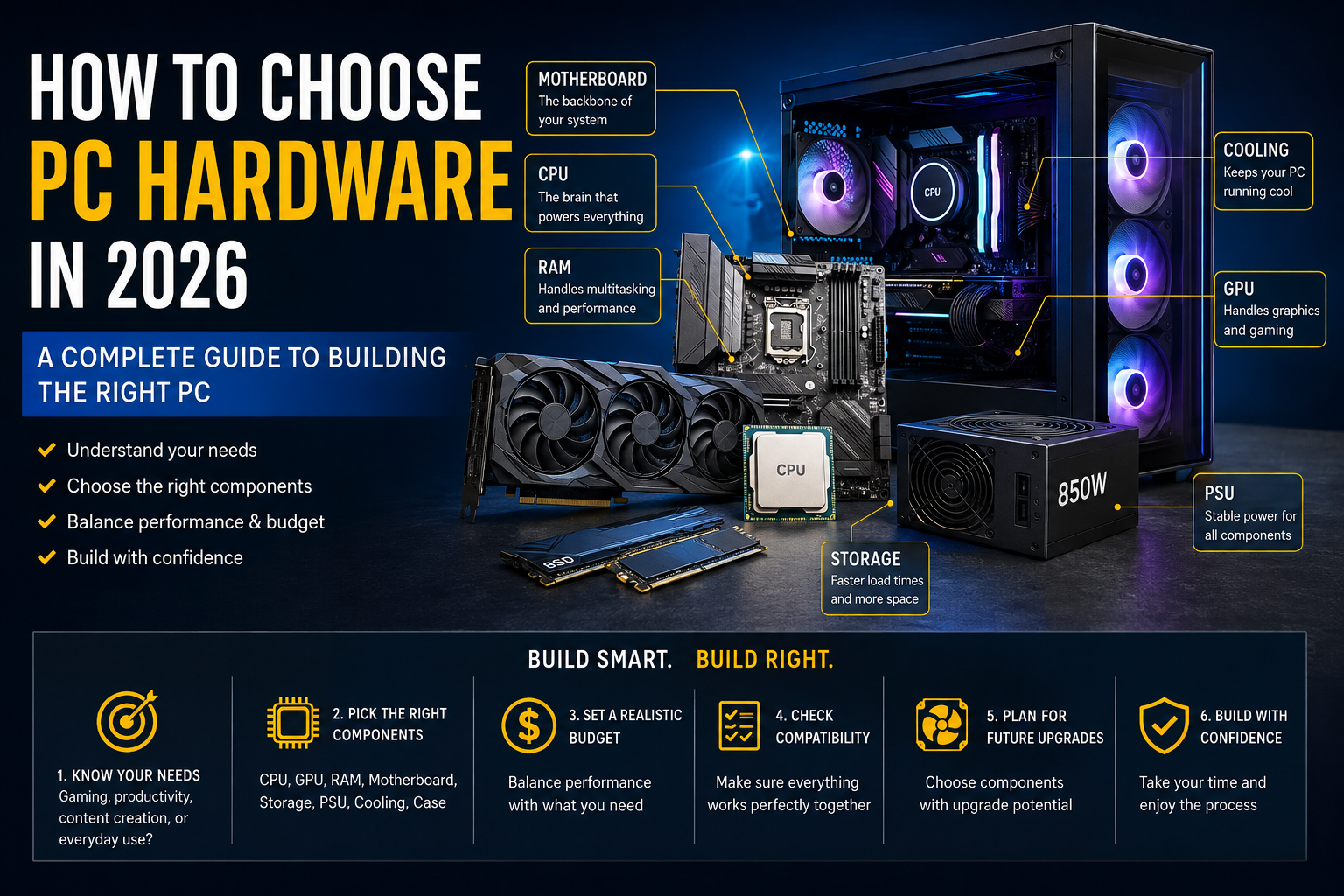
Picking PC hardware in 2026 is not really a technical problem — it’s a decision-making problem. The specs are all publicly available. The reviews exist. The comparison charts are everywhere. What trips most people up isn’t a lack of information; it’s too much of it, presented with no clear connection to what they actually need the computer to do.
Ask five different people what CPU or GPU to buy, and you’ll likely get five different answers, none of which account for your budget, your workload, or the rest of your system. A high-end CPU paired with a weak power supply doesn’t make a “high-end PC” — it makes an unstable one. A powerful GPU dropped into a case with no airflow will run hot and loud. Hardware doesn’t work in isolation, and the “best” component on a benchmark chart isn’t necessarily the best choice for you.
This guide takes a different approach. Instead of telling you which product to buy, it walks through how to think about each major component — CPU, GPU, RAM, storage, motherboard, power supply, cooling, and case — so you can match hardware to your actual use case, whether that’s gaming, content creation, programming, general productivity, or a bit of everything. We’ll also cover budget planning, common buying mistakes, and a compatibility checklist you can use before you spend a cent.
The goal isn’t to make you an engineer. It’s to help you buy with confidence.
1. Start With Your PC’s Main Purpose
Before looking at a single spec sheet, answer one question honestly: what will this PC actually be used for, most of the time?
This matters more than any individual component choice, because different workloads stress different parts of a system. A PC built for gaming and a PC built for video editing can have wildly different priorities even at the same price point.
Everyday Use
Web browsing, email, streaming video, word processing, and light multitasking don’t require powerful hardware. A modest modern CPU, 16GB of RAM, and an SSD for fast boot times will comfortably cover this, and there’s little reason to overspend here.
School or Work (General Productivity)
Spreadsheets, video calls, office software, and multiple browser tabs benefit most from adequate RAM and a responsive SSD. CPU horsepower matters less than consistency — a system that doesn’t slow down under multitasking.
Gaming
Gaming shifts the priority toward the GPU, though CPU, RAM, and storage still matter. The specific balance depends heavily on the resolution and refresh rate of your monitor, which we’ll cover in more detail later.
Streaming
Streaming while gaming adds real load on top of the game itself, since encoding video in real time competes for CPU and/or GPU resources. Streamers typically need a stronger CPU (more cores tend to help) and, in some cases, benefit from a GPU with dedicated hardware encoding.
Photo and Video Editing
Photo editing tends to lean on CPU performance and RAM capacity, while video editing — especially at higher resolutions — benefits from a strong GPU, fast storage for large media files, and enough RAM to handle large project files without slowdown.
3D Work
3D modeling, rendering, and CAD software often depend heavily on GPU performance (and sometimes GPU memory capacity), along with a capable multi-core CPU for tasks like simulation or baking.
Programming
Most everyday coding and debugging is not especially hardware-intensive, but certain tasks — compiling large codebases, running local containers or virtual machines, or working with large datasets — benefit from more CPU cores and additional RAM.
AI and Local Workloads
Running local AI models or doing machine learning experimentation typically demands a capable GPU with sufficient video memory (VRAM), since many of these workloads are memory-constrained rather than purely speed-constrained.
There is no single “best” PC configuration, because these workloads pull priorities in different directions. A configuration that’s excellent for gaming may be mediocre for 3D rendering, and a workstation built for video editing may be overkill — or underpowered in the wrong places — for gaming. Identifying your primary use case first lets you allocate your budget where it actually counts.
2. How to Choose a CPU
The CPU (processor) handles general computing tasks and coordinates almost everything happening on your system. It’s often the first component people research, and also the one most likely to cause analysis paralysis.
Cores and Threads
Cores are the physical processing units inside a CPU; threads are how many tasks each core can juggle at once (many modern CPUs handle more than one thread per core). More cores generally help with multitasking and workloads that can split work across many threads at once, such as video rendering, compiling code, or running multiple applications simultaneously. Many games, on the other hand, still rely heavily on a smaller number of very fast cores rather than a high total core count.
Clock Speeds
Clock speed, measured in GHz, indicates how many cycles a core can complete per second. Higher clock speeds generally mean faster performance per core, but clock speed alone doesn’t tell the whole story — architecture (the underlying design of the chip) and generation matter just as much, sometimes more.
CPU Generations
CPU manufacturers release new generations regularly, and a newer generation often delivers better performance per core, better efficiency, or new features, even at a similar clock speed to an older chip. When comparing CPUs, avoid judging purely on clock speed or core count across different generations — a newer, lower-clocked chip can outperform an older, higher-clocked one.
Performance vs. Price
CPU pricing is not linear with performance. The jump from a budget CPU to a mid-range one often brings a noticeable real-world improvement. The jump from a strong mid-range CPU to the most expensive flagship option is usually far smaller in practical terms, especially for gaming, where the GPU is typically the bigger bottleneck.
Gaming vs. Productivity Workloads
Gaming performance tends to favor strong single-core (or few-core) speed, while productivity workloads like rendering, compiling, or exporting video tend to scale better with total core count. If you split your time between both, look for a CPU that offers a solid balance rather than one optimized heavily toward a single use case.
Integrated Graphics
Some CPUs include integrated graphics (a basic GPU built into the chip), which can handle everyday tasks, video playback, and even some lighter games without a separate graphics card. If you plan to add a dedicated GPU immediately, integrated graphics matters less — but it’s a useful fallback or a way to get a system running before buying a GPU.
CPU Socket and Platform Compatibility
Every CPU is designed for a specific socket type, and it will only work with motherboards that support that socket. This is one of the most common compatibility mistakes in PC building — always confirm the CPU and motherboard use matching sockets and supported chipsets before buying either one.
What Beginners Should Actually Look For
Rather than trying to memorize every spec, beginners should focus on three questions: What will I mainly use this PC for? What’s my budget? And does this CPU pair with a motherboard that fits both my budget and my upgrade plans? Everything else — cache sizes, exact clock boosts, architectural details — matters more at the margins than most buying guides suggest.
3. How to Choose a GPU
The GPU (graphics processing unit, or “graphics card”) renders images, video, and — most relevantly for many buyers — game visuals. For gaming, creative work, and 3D or AI workloads, it’s often the single most impactful component you’ll choose.
What the GPU Actually Does
The GPU handles the heavy lifting of rendering graphics: calculating lighting, textures, geometry, and frames per second in games, or accelerating rendering and export tasks in creative software. A more capable GPU can render more complex scenes at higher resolutions and frame rates.
Gaming Resolution
GPU requirements scale directly with resolution. A GPU that performs comfortably at 1080p may struggle at 4K, because the GPU has to render significantly more pixels per frame at higher resolutions.
VRAM (Video Memory)
VRAM is dedicated memory on the graphics card itself, used to store textures, frame buffers, and other rendering data. Modern games and higher resolutions generally require more VRAM, and running out of it can cause stuttering or reduced texture quality, even if the GPU’s core processing power would otherwise be sufficient. VRAM needs vary depending on resolution, game settings, and use case (video editing and 3D work can also be VRAM-hungry).
Ray Tracing
Ray tracing is a rendering technique that simulates how light interacts with surfaces more realistically, producing more accurate reflections, shadows, and lighting. It’s more computationally demanding than traditional rendering, so GPUs vary significantly in how well they handle it.
Upscaling Technologies
Several GPU manufacturers offer upscaling technologies that render a game at a lower internal resolution and then use software (often AI-assisted) to upscale the image, aiming to improve frame rates with a smaller impact on visual quality than native lower-resolution rendering. Support and quality vary by GPU generation and manufacturer, so it’s worth checking whether a specific GPU supports the upscaling technology you’re interested in.
GPU Performance Tiers
GPUs are generally organized into entry-level, mid-range, high-end, and flagship tiers, with pricing and performance scaling accordingly. Entry-level cards suit 1080p gaming and everyday use; mid-range cards handle 1080p and 1440p well; high-end and flagship cards target 1440p and 4K gaming or demanding creative and 3D workloads.
Matching GPU to Monitor
Your GPU choice should be guided by the monitor you use (or plan to use), not the other way around. Pairing a top-tier GPU with a 1080p 60Hz monitor means the GPU will often be capable of far more frames than the monitor can display, while pairing a weak GPU with a high-refresh 1440p or 4K monitor means you won’t get the smooth, high-frame-rate experience the monitor is built for.
| Resolution | Typical GPU Need | Notes |
|---|---|---|
| 1080p | Entry to mid-range | Still the most common gaming resolution; efficient for high frame rates |
| 1440p | Mid-range to high-end | A common “sweet spot” for balancing visual quality and performance |
| 4K | High-end to flagship | Demands significantly more GPU power and VRAM |
We won’t cite specific benchmark numbers or declare any GPU the “best,” since pricing, availability, and performance rankings shift frequently. Always check current, independent reviews and benchmarks close to your purchase date.
4. How Much RAM Do You Need?
RAM (system memory) temporarily holds data your CPU needs quick access to. Having enough RAM prevents slowdowns when multitasking or running memory-intensive applications; having too little forces your system to rely on slower storage-based memory swapping.
8GB vs. 16GB vs. 32GB vs. 64GB+
- 8GB is now considered a minimum for basic use and can feel limiting even for everyday multitasking with modern web browsers and software.
- 16GB is a common baseline for gaming and general productivity, and comfortable for most mainstream users in 2026.
- 32GB benefits content creators, streamers, programmers working with large projects or virtual machines, and gamers who multitask heavily while playing.
- 64GB or more is generally reserved for demanding professional workloads — large-scale video editing, 3D rendering, running multiple virtual machines, or certain AI/local model workloads.
DDR4 vs. DDR5
DDR5 is the newer memory standard, generally offering higher potential speeds and bandwidth than DDR4, though it typically costs more. Which one you need depends on your CPU and motherboard, since these two components determine which memory standard is supported — they are not interchangeable.
Memory Speed
RAM speed (measured in MHz or MT/s) affects how quickly data can be transferred, and faster memory can provide modest performance gains in certain workloads. However, having sufficient capacity generally matters more than chasing the highest possible speed, especially for mainstream use.
Dual-Channel Operation
Installing RAM in matched pairs (rather than a single stick) enables dual-channel operation, which allows the system to access memory more efficiently. This is why two 8GB sticks often outperform a single 16GB stick, even though the total capacity is the same — check your motherboard’s manual for the correct slots to use.
Practical Recommendations
There’s no single “correct” amount of RAM for everyone. General users and light gamers are often well served by 16GB, while content creators, heavy multitaskers, and certain professional workloads benefit noticeably from 32GB or more. Buying more RAM than your workload requires provides little practical benefit, so it’s worth matching capacity to your actual use rather than defaulting to the highest number available.
5. Choosing Storage
Storage determines how quickly your operating system boots, how fast applications and games load, and how much room you have for files. Not all storage is equal, and the differences matter more in some scenarios than others.
SATA SSD
SATA SSDs are solid-state drives that use the older SATA interface. They’re significantly faster than traditional hard drives but slower than NVMe SSDs. They remain a reasonable budget option for additional storage.
NVMe SSD
NVMe SSDs connect via the faster PCIe interface and offer substantially higher speeds than SATA SSDs, which can meaningfully reduce load times for large games and speed up tasks that move large files, like video editing.
PCIe Generations
NVMe SSDs are built on different generations of the PCIe interface (each generation roughly doubling potential bandwidth over the last). A drive’s real-world speed depends on both the drive itself and whether the motherboard supports that PCIe generation — pairing a newer, faster drive with an older motherboard slot will limit it to the older standard’s speeds.
HDDs (Hard Disk Drives)
Traditional hard drives are mechanical, slower, and less durable in terms of shock resistance than SSDs, but they remain far cheaper per unit of storage. They can still make sense for bulk storage of large files — media libraries, backups, or archives — where speed is less important than capacity.
Capacity, Speed, and Real-World Impact
More capacity means more room for games, applications, and files. More speed means faster boot times, file transfers, and, to a degree, game loading — though loading-time improvements between different NVMe drives are often smaller than the jump from an HDD to any SSD.
| Storage Type | Relative Speed | Best For |
|---|---|---|
| HDD | Slowest | Bulk storage, backups, archives |
| SATA SSD | Moderate | Budget-friendly primary or secondary drive |
| NVMe SSD | Fastest | OS, games, applications, large media files |
When a Faster SSD Actually Matters
Paying extra for the fastest available NVMe drive matters most for workloads that move large files repeatedly, such as video editing with large source footage, or working with very large datasets. For general use and most gaming, a mid-tier NVMe or even a solid SATA SSD as a secondary drive will feel similarly responsive day to day, since the bottleneck often shifts elsewhere in the system.
6. Choosing a Motherboard
The motherboard connects every other component and determines what you can install, how you can expand later, and how stable your system will be. It doesn’t directly boost gaming performance the way a CPU or GPU does, which is why it’s often the most overlooked — and most miscalculated — component.
CPU Socket Compatibility
The motherboard must use the same socket as your chosen CPU. This is non-negotiable and is the single most important compatibility check in the entire build.
Chipset
The chipset determines which features are available — things like the number of usable PCIe lanes, overclocking support, and how many storage or USB devices can be connected. Different chipsets within the same socket family often target different budgets and feature sets.
RAM Compatibility
Motherboards support specific memory types (DDR4 or DDR5, not both) and have maximum supported capacities and speeds. Always confirm compatibility with your chosen RAM before buying either component.
PCIe Slots
PCIe slots are used for graphics cards and certain expansion cards. The number and generation of these slots affects both what you can install now and what you can add later.
M.2 Slots
M.2 slots are used for NVMe SSDs. Motherboards vary in how many M.2 slots they offer and which PCIe generation each slot supports, which can affect both storage speed and future expansion.
USB Ports
The number and type of USB ports (including newer high-speed standards) varies by motherboard and affects how many peripherals and external drives you can connect without needing a hub.
Wi-Fi and Ethernet
Some motherboards include built-in Wi-Fi; others require a separate Wi-Fi adapter or an Ethernet-only wired connection. If wireless connectivity matters to you, confirm it’s included rather than assuming.
Expansion Options
Consider how many drives, expansion cards, and peripherals you may want to add over the life of the system, and choose a motherboard with enough slots and ports to accommodate that.
VRM Considerations
The VRM (voltage regulator module) delivers stable power to the CPU. A stronger VRM design matters more for higher-power CPUs or for those planning to overclock, since it affects how reliably the board can sustain power delivery under load.
Don’t Overspend on the Motherboard
Unless you specifically need premium features — extensive overclocking support, top-tier connectivity, or maximum expansion — the motherboard is usually not where most of your budget should go. Spending heavily here at the expense of the CPU, GPU, or RAM often results in a weaker overall system for the same total price.
7. Choosing a Power Supply
The power supply unit (PSU) is one of the easiest components to underestimate, and one of the worst places to cut corners. It doesn’t just power your system — it protects it.
Wattage
Wattage indicates how much power the PSU can supply. The right wattage depends on your total system power draw, particularly from the CPU and GPU, which are typically the largest consumers. Buying significantly more wattage than you need offers little benefit; buying too little can cause instability or prevent your system from running reliably under load.
Efficiency Ratings
PSUs carry efficiency certifications indicating how effectively they convert AC power from the wall into DC power for your components, with less wasted as heat. Higher-rated efficiency tiers generally mean less wasted energy and often — though not always — better overall build quality.
PSU Quality
Not all PSUs of the same wattage are equal in build quality, component quality, or protective features (like over-voltage or short-circuit protection). A poorly made PSU is a genuine risk to the rest of your system, since it can potentially damage other components if it fails.
ATX Standards
PSUs follow ATX form factor and connector standards, which affect physical compatibility with your case and the type of power connectors available for your motherboard and GPU. Newer standards have introduced updated connector types for high-power GPUs — confirm your PSU has the correct connectors for your specific graphics card.
GPU Power Requirements
High-end GPUs can require substantial dedicated power and specific connector types. Always check your chosen GPU’s power requirements and confirm your PSU can meet them with appropriate connectors, rather than assuming any sufficiently high-wattage PSU will work.
Why Cheap PSUs Are a Bad Place to Save Money
A failing or poor-quality PSU can cause system instability, unexpected shutdowns, or in worse cases, damage to other components. Because the PSU affects the reliability of everything else in the system, it’s generally better to choose a reputable, appropriately rated unit than to save money here and risk the rest of your build.
8. PC Cooling
Cooling keeps your components running within safe temperature ranges, which affects both performance and long-term reliability. The right cooling setup depends on your CPU’s power demands, your case, and how much noise you’re willing to tolerate.
Air Cooling
Air coolers use a heatsink and fan (or fans) to dissipate heat from the CPU. They’re generally reliable, lower-maintenance, and available in a wide range of sizes and performance levels, from basic stock coolers to large high-performance air coolers.
AIO Liquid Cooling
All-in-one (AIO) liquid coolers use a pump, tubing, and a radiator (with attached fans) to move heat away from the CPU more efficiently, particularly for high-power CPUs. They can offer strong cooling performance in a comparatively compact footprint but add complexity and a (small) risk of leaks compared to air cooling.
CPU Cooler Compatibility
Coolers are designed for specific CPU sockets, and not every cooler supports every socket. Always confirm your cooler explicitly supports your CPU’s socket before purchasing.
Case Airflow
Good case airflow allows cool air to enter and hot air to exit efficiently, which affects the temperatures of every component inside — not just the CPU. A case with poor airflow can bottleneck even excellent individual cooling components.
Intake vs. Exhaust Fans
Intake fans draw cooler outside air into the case, while exhaust fans push warm air out. A well-balanced setup includes both, positioned to create a clear path of airflow across the components that generate the most heat.
Positive vs. Negative Pressure
Positive pressure (slightly more intake airflow than exhaust) tends to reduce dust buildup by encouraging air to escape through vents rather than draw in unfiltered air through gaps. Negative pressure (more exhaust than intake) can improve raw airflow in some configurations but may pull in more dust through unfiltered openings. Neither is universally “correct” — it depends on your case design and fan placement.
When Basic Cooling Is Enough
A quality stock or basic air cooler is often sufficient for mainstream CPUs used in everyday, gaming, or moderate productivity workloads. More advanced cooling — larger air coolers or AIO liquid coolers — becomes more relevant for higher-power CPUs, sustained heavy workloads (like long rendering sessions), or when overclocking, where additional cooling headroom directly supports stability and performance.
9. Choosing a PC Case
The case is more than an enclosure — it directly affects airflow, noise, component clearance, and how easy the system is to build and maintain.
ATX, Micro-ATX, and Mini-ITX
These refer to motherboard (and corresponding case) form factors, from largest to smallest: ATX offers the most space and expansion room, Micro-ATX is a more compact middle ground, and Mini-ITX prioritizes small size, generally at the cost of expansion options and sometimes cooling headroom.
GPU Clearance
Cases have a maximum supported GPU length. Modern GPUs — particularly high-end ones — can be quite large, so it’s important to confirm your case can physically accommodate your chosen GPU before buying either component.
CPU Cooler Clearance
Similarly, cases specify a maximum CPU cooler height (for air coolers) or radiator size support (for AIO coolers). Large air coolers in particular can be surprisingly tall, so check this figure against your cooler’s specifications.
Radiator Support
If you’re using an AIO liquid cooler, confirm the case explicitly supports the radiator size (commonly measured in millimeters, corresponding to fan size and count) in the mounting position you intend to use.
Fan Support
Cases vary in how many fans they support and where those fans can be mounted, which directly affects your airflow options. More mounting positions generally mean more flexibility in fine-tuning cooling.
Front-Panel Connectivity
Front-panel ports (USB, headphone/microphone jacks, sometimes USB-C) affect day-to-day convenience. Check what’s included and confirm your motherboard supports the corresponding header connections.
Airflow
Beyond fan count, mesh front panels and well-placed vents generally support better airflow than solid, heavily restricted front panels, which can trap heat even with capable fans installed.
Check Compatibility Before You Buy
Before purchasing a case, confirm it supports your motherboard’s form factor, your GPU’s length, your cooler’s height or radiator size, and the number of fans or drives you plan to install. This single check prevents some of the most common and frustrating build problems.
10. Don’t Forget the Monitor
It’s easy to treat the monitor as an afterthought, but it should influence your hardware decisions, not just sit at the end of the shopping list.
Resolution
- 1080p remains widely used, is easier to drive at high frame rates, and pairs well with more modest GPUs.
- 1440p offers a noticeable visual step up from 1080p while remaining more attainable than 4K, and is often considered a strong balance point for gaming.
- 4K delivers the sharpest image but requires significantly more GPU power to drive smoothly, especially at higher frame rates.
Refresh Rate
Refresh rate (measured in Hz) determines how many times per second the display updates. Higher refresh rates can make motion feel smoother and more responsive, but only if your GPU can consistently produce enough frames per second to take advantage of it.
Response Time
Response time measures how quickly a pixel can change from one color to another, and lower response times generally reduce motion blur and ghosting, which matters most in fast-paced gaming.
Adaptive Sync
Adaptive sync technologies (available in different forms across GPU and monitor manufacturers) synchronize the monitor’s refresh rate with the GPU’s frame output, reducing screen tearing and stuttering. Compatibility between your GPU and monitor’s adaptive sync support is worth confirming before buying either.
Panel Types
Different panel technologies (such as IPS, VA, and TN) trade off differently between color accuracy, contrast, viewing angles, and response time. There’s no universally “best” panel type — the right choice depends on whether you prioritize color accuracy, contrast, or motion clarity.
Matching GPU to Monitor (Revisited)
A higher-resolution or higher-refresh-rate monitor generally calls for a stronger GPU to make full use of it. Conversely, pairing a modest monitor with an extremely powerful GPU means you’re likely paying for performance headroom you won’t visually benefit from. Think of the monitor and GPU as a matched pair, not two independent purchases.
11. How to Balance a PC Hardware Budget
There’s no universal formula for splitting a budget across components, because the right allocation depends on your priorities. That said, a few general approaches can help guide the process.
Budget Gaming PC
Prioritize the GPU and CPU balance for your target resolution (often 1080p), with enough RAM (commonly 16GB) and a reasonably fast NVMe SSD for the operating system and a handful of games. Motherboard and case choices lean toward functional rather than feature-rich.
Mid-Range Gaming PC
A stronger GPU (often targeting 1440p) paired with a capable CPU, 16–32GB of RAM depending on multitasking habits, and a larger or faster NVMe SSD. This tier often benefits from a slightly more capable cooling solution as component power draw increases.
High-End Gaming PC
Prioritizes a high-tier GPU (often targeting 1440p or 4K at high refresh rates), a strong CPU to avoid bottlenecking that GPU, ample RAM, fast storage, and a PSU and cooling solution rated with enough headroom for sustained high performance.
Productivity-Focused PC
Prioritizes CPU core count and RAM capacity over top-tier GPU performance, unless the specific software also benefits from GPU acceleration. Fast, ample storage matters for handling large files and project data.
Creator Workstation
Balances a strong CPU (for encoding, compiling, and general responsiveness), a capable GPU (for editing, rendering, and export acceleration in supported software), generous RAM, and fast, high-capacity storage for large media libraries and project files.
We’re intentionally not listing fixed prices here, since component pricing shifts frequently with market conditions, availability, and new product releases. Use current retailer listings and independent reviews to translate these approaches into an actual parts list at the time of your purchase.
12. Common PC Hardware Buying Mistakes
- Buying the most expensive CPU without needing it. Overinvesting in the CPU while other components (like the GPU) become the actual performance bottleneck.
- Overspending on RGB and aesthetics. Cosmetic features are a personal preference, but they shouldn’t come at the expense of core performance components on a fixed budget.
- Choosing a GPU with insufficient VRAM. A GPU can have plenty of processing power but still struggle if it runs out of video memory for your target resolution and settings.
- Buying insufficient RAM. Undersizing RAM to save a small amount of money often causes disproportionate slowdowns, especially when multitasking.
- Ignoring PSU quality. Choosing the cheapest available PSU regardless of build quality or protective features, risking the reliability of the entire system.
- Forgetting motherboard compatibility. Buying a CPU and motherboard with mismatched sockets or chipsets, or RAM that isn’t supported by the board.
- Ignoring case dimensions. Purchasing a GPU, cooler, or radiator that doesn’t physically fit the case.
- Buying hardware based only on brand. Assuming one manufacturer is automatically superior across every product tier, rather than comparing the specific products in question.
- Ignoring future upgrade requirements. Choosing a motherboard, PSU, or case with no room to expand later, forcing a bigger overhaul sooner than necessary.
- Focusing on specifications instead of real-world use. Chasing the highest numbers on a spec sheet instead of considering how a component performs for your specific workload.
13. How to Check Component Compatibility
Use this checklist to confirm your parts will actually work together before purchasing:
- CPU + Motherboard: Confirm matching socket type and that the motherboard’s chipset officially supports your specific CPU (sometimes requiring a BIOS update).
- RAM + Motherboard: Confirm the motherboard supports your RAM’s type (DDR4 or DDR5), speed, and total capacity.
- GPU + Case: Confirm the case’s maximum supported GPU length accommodates your specific graphics card.
- PSU + GPU/System: Confirm the PSU has sufficient wattage and the correct connector types for your GPU and overall system power draw.
- CPU Cooler + CPU Socket: Confirm the cooler explicitly lists support for your CPU’s socket.
- Cooler + Case Clearance: Confirm the case supports your air cooler’s height or your AIO’s radiator size in your intended mounting position.
- Storage + Motherboard: Confirm the motherboard has an available M.2 slot (for NVMe) or SATA port (for SATA SSDs/HDDs) of the appropriate type.
- Motherboard Form Factor + Case: Confirm the case explicitly supports your motherboard’s form factor (ATX, Micro-ATX, or Mini-ITX).
14. A Simple PC Hardware Buying Checklist
Save this list and run through it before finalizing any PC purchase:
- [ ] I’ve identified my primary use case (gaming, productivity, creative work, etc.)
- [ ] I’ve set a realistic total budget
- [ ] I’ve chosen a CPU that fits my workload, not just the highest-rated one available
- [ ] I’ve confirmed my motherboard matches my CPU’s socket and supports my RAM type
- [ ] I’ve chosen a GPU appropriate for my monitor’s resolution and refresh rate
- [ ] I’ve confirmed my GPU fits in my case and my PSU can power it
- [ ] I’ve chosen enough RAM for my actual workload, not the bare minimum
- [ ] I’ve selected storage that balances speed and capacity for my needs
- [ ] I’ve confirmed my cooler is compatible with my CPU socket and fits my case
- [ ] I’ve checked that my case supports my motherboard’s form factor
- [ ] I’ve chosen a reputable PSU with adequate wattage and the correct connectors
- [ ] I’ve considered future upgrade paths before finalizing my parts list
Conclusion
There’s no shortcut that replaces understanding what you actually need from your PC. The most expensive components aren’t automatically the right ones, and the cheapest aren’t automatically a bad deal — it all depends on how the pieces fit together and how they match your workload.
Start with your primary use case, choose components that support each other rather than competing for budget, and double-check compatibility before you buy anything. A well-matched, moderately priced build will almost always outperform a mismatched collection of expensive parts. The right PC isn’t the most powerful one on paper — it’s the one that reliably does what you need it to do, within the budget you’re comfortable spending, with room to grow as your needs change.
Sources to Verify
Before publishing specific product recommendations, current prices, or performance claims, verify details against current, authoritative sources such as:
- Official Intel Processor Specifications
- Official AMD Processor Specifications
- Official NVIDIA GeForce Graphics Card Specifications
- Official AMD Product Specifications
- ASUS Motherboard CPU & Memory QVL Guide
- MSI Motherboard Memory Compatibility Guide
- PCI-SIG PCI Express Specifications
- JEDEC Memory Standards
- 80 PLUS Certified PSU Database
- VESA Adaptive-Sync Information
- Tom’s Hardware — PSU Testing Methodology