
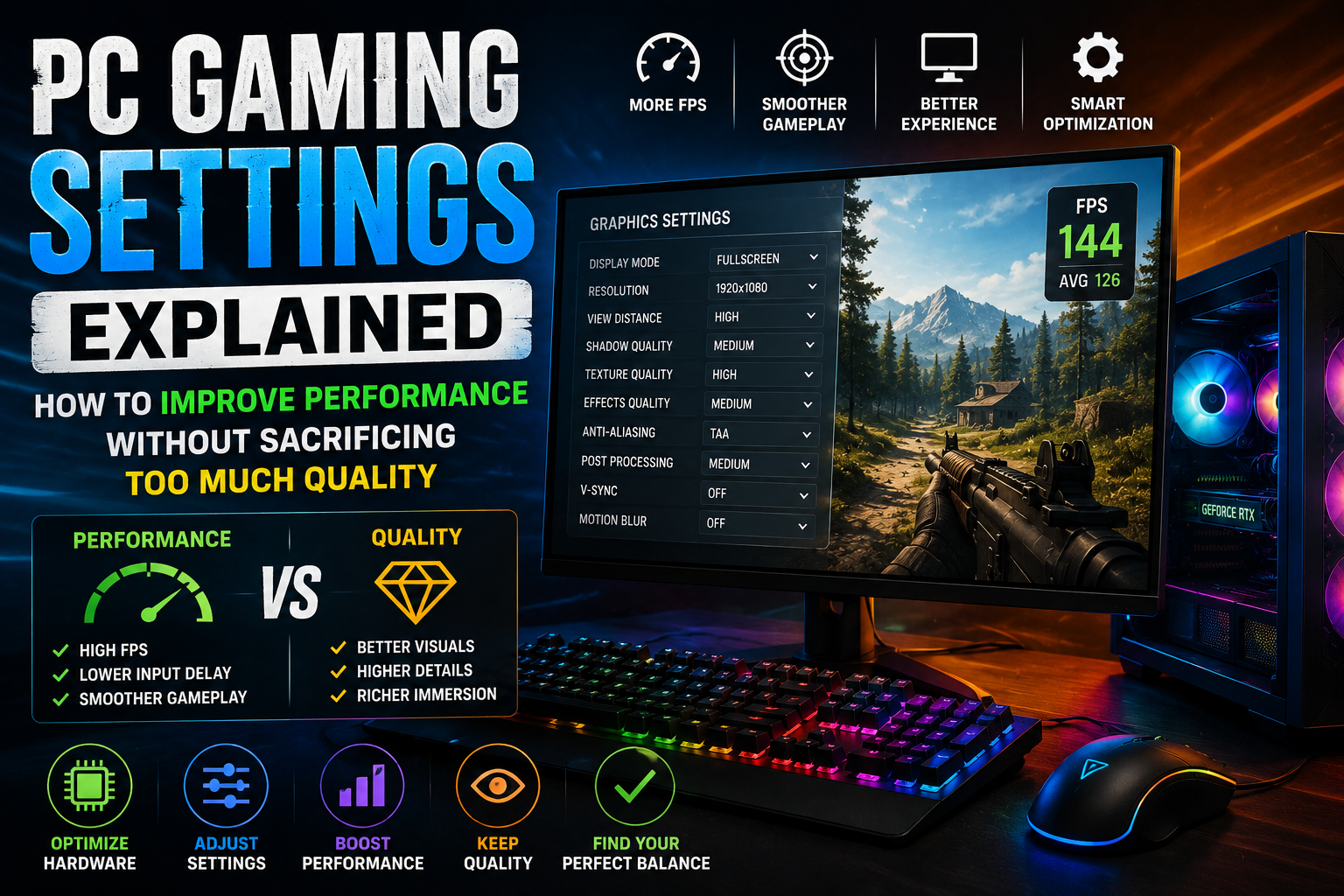
When you fire up a newly released video game on your computer, heading into the graphics menu often reveals an overwhelming array of sliders, toggles, and technical acronyms. From ambient occlusion and anti-aliasing to volumetric lighting and ray tracing, modern PC games give players an unprecedented level of control over how their titles look and run. However, finding the right balance between visual fidelity and performance can quickly become confusing.
The best graphics settings are never universal; they depend entirely on your specific hardware, the game you are playing, your monitor’s resolution and refresh rate, and your personal preferences. Instead of blindly lowering every setting to minimum or struggling with stuttering framerates, learning what each option controls empowers you to customize your experience. This comprehensive guide breaks down essential PC gaming settings and teaches you how to optimize your performance without ruining visual quality.
For more insights into computer hardware and gaming optimization, explore our [Internal Link: Gaming] and [Internal Link: PC Hardware].
1. Introduction
PC games contain numerous graphics settings to accommodate the wide variety of computer hardware configurations available on the market. From budget laptops to high-end custom desktop rigs, developers include scalable options so that players can tailor the experience to their specific machine. However, navigating this vast list of choices can be daunting.
Finding the ideal balance is not about achieving maximum values across the board; it is about recognizing which options heavily tax your hardware and which provide minimal visual returns. By understanding how these options interact, you can fine-tune your configuration for a smooth, visually appealing experience.
2. Before Changing Settings: Understand Your Goal
Before touching any sliders, it helps to define what you want out of your gaming experience. PC gaming offers total flexibility, but that means balancing several core factors:
- Image quality: How sharp, detailed, and visually rich the game world appears.
- Frame rate: How many individual images your computer renders per second, dictating motion fluidity.
- Resolution: The total pixel count defining the crispness of the rendered image.
- Refresh rate: How many times per second your monitor can update the displayed image.
- Input responsiveness: The delay between moving your mouse or controller and seeing the action happen on screen.
- Visual consistency: Maintaining a steady, stable frame pacing without sudden stutters or hitching.
A higher frame rate number is not automatically better for every single player. While competitive shooters demand maximum fluidity and minimal input lag, a slow-paced single-player adventure may look and feel incredible at a stable, cinematic framerate.
3. Resolution
Resolution dictates the total number of pixels—organized in horizontal rows and vertical columns—that construct the image on your display.
- 1080p (Full HD): A long-standing standard that offers sharp visuals while demanding less graphical processing power, making it popular for high-framerate setups.
- QHD (1440p): A substantial step up in sharpness, offering a popular sweet spot for modern desktop monitors.
- 4K (Ultra HD): Delivers immense detail and clarity, but places a heavy workload on your graphics processor.
Lowering your in-game resolution can significantly improve performance because your GPU has to render far fewer pixels. However, dropping below your monitor’s native resolution can introduce softness or blurriness unless you utilize proper scaling techniques.
4. Refresh Rate
Refresh rate, measured in Hertz (Hz), represents how frequently your monitor updates its image. A standard office display operates at 60Hz, while gaming monitors frequently offer 144Hz, 240Hz, or higher.
The relationship between your computer’s frame rate (FPS) and your monitor’s refresh rate defines visual smoothness. When your hardware generates frames matching your monitor’s refresh capacity, motion appears fluid. If your system outputs fewer frames than your monitor can display, or vice-versa, understanding synchronization options becomes crucial.
5. Texture Quality
Texture quality determines the resolution of the image maps wrapped over 3D models in the game world. High-quality textures make walls, ground surfaces, clothing, and objects look crisp and detailed.
Crucially, texture quality is primarily limited by your graphics card’s Video RAM (VRAM) capacity rather than raw processing speed. If a game’s texture settings exceed your VRAM limit, you may experience severe stuttering. If you have sufficient VRAM, turning texture quality up usually has minimal impact on raw processing performance.
6. Shadow Quality
Shadow quality governs the resolution, sharpness, and rendering distance of shadows cast by light sources and objects.
Real-time shadow calculation is notoriously demanding on computer hardware. Reducing shadow quality or lowering shadow resolution is often one of the easiest ways to recover performance while maintaining a sharp overall image, as subtle reductions in shadow fidelity are rarely noticed during fast-paced gameplay.
7. Anti-Aliasing
Because computer screens are made of square pixels, diagonal lines and sharp edges often appear jagged or pixelated (a visual artifact known as aliasing). Anti-aliasing techniques smooth out these jagged edges.
Various methods exist—such as traditional multi-sampling or modern temporal techniques—each balancing visual cleanliness and performance differently. While anti-aliasing enhances image realism by removing distracting edge flickering, it can introduce a slight performance cost.
8. Ambient Occlusion
Ambient occlusion simulates how light naturally gets blocked in corners, crevices, and where two surfaces meet. It creates subtle contact shadows that add depth, grounding objects realistically into the environment.
While ambient occlusion significantly improves visual depth and realism, it requires notable GPU processing power. Disabling or lowering ambient occlusion can provide a tangible performance boost in demanding scenes.
9. Ray Tracing
Ray tracing is an advanced rendering technique that simulates the physical behavior of light rays, producing hyper-realistic reflections, soft shadows, and global illumination.
Because tracing individual light paths requires immense computational power, enabling ray tracing can dramatically reduce frame rates. Players must weigh the stunning visual realism it provides against their hardware’s ability to maintain a smooth, playable framerate.
10. Upscaling Technology
Image upscaling technologies—such as DLSS, FSR, and XeSS—render the game at a lower internal resolution before intelligently reconstructing and sharpening the image to match your target display resolution using advanced algorithms.
These technologies can provide substantial performance improvements, allowing players to enjoy high-resolution visuals at smooth frame rates without a massive hardware penalty. Availability depends on specific game integration and graphics hardware support, and no single technology is universally best for every system.
11. Frame Generation
Frame generation uses advanced software algorithms and motion data to synthesize and insert entirely intermediate frames between traditionally rendered frames.
While frame generation can make motion appear exceptionally smooth on screen, it can also introduce additional input latency and require robust hardware backing. Support varies widely across modern game titles.
12. V-Sync
Vertical Synchronization (V-Sync) locks your game’s frame rate to match your monitor’s refresh rate.
Its primary purpose is to eliminate screen tearing—a visual artifact where horizontal tears appear because the monitor displays parts of two different frames at once. However, traditional V-Sync can introduce input lag, leading many modern gamers to utilize adaptive synchronization alternatives.
13. Motion Blur
Motion blur adds an artificial blur effect to moving objects or the entire screen when the camera pans quickly, simulating how human eyes or physical camera shutters capture motion.
This setting is largely a matter of personal preference. Many players immediately disable motion blur to keep the screen sharp during fast movement, while others enjoy the cinematic sense of speed it provides.
14. Field of View (FOV)
Field of view controls how wide of an area you can see on screen from your character’s perspective.
- Wider FOV: Lets you see more of your peripheral surroundings, which is helpful in fast-paced action games.
- Narrower FOV: Focuses tighter on the center of the action.
Rendering a wider field of view forces the engine to calculate more objects on screen simultaneously, which can introduce a minor performance cost depending on the game engine, though no single FOV value is universally correct.
15. Effects and Post-Processing
Post-processing effects add cinematic flair to the image after the base 3D scene is rendered. Common settings include:
- Bloom: Soft light bleeding around bright sources.
- Depth of field: Blurring distant or close objects to mimic camera focus.
- Film grain: Adding subtle noise for an analog aesthetic.
- Volumetric effects: Simulating atmospheric fog, smoke, and light shafts.
Most of these are visual preference settings, though heavy volumetric fog and complex particle effects can impact performance during intense action sequences.
16. Which Settings Should You Lower First?
When your game is running below your target performance, adjusting settings strategically helps recover frame rates without destroying visual quality. Prioritize lowering:
- Volumetric effects and fog
- Shadow quality and resolution
- Ambient occlusion intensity
- Screen-space reflections
- Ray tracing features (if enabled)
- Post-processing filters like motion blur and depth of field
17. Recommended Approach for Different PCs
- Entry-level gaming PCs: Focus on lower native resolutions (like 1080p), utilize upscaling technologies where available, set textures within VRAM limits, and drop shadows and post-processing to medium or low.
- Mid-range gaming PCs: Balance medium-to-high settings, target 1440p or high-refresh 1080p, moderate ray tracing usage, and leverage upscaling to maintain smooth frame rates.
- High-end gaming PCs: Maximize high resolutions, enable high-quality textures, explore ray tracing features, and enjoy rich visual effects while utilizing frame synchronization.
18. Best Settings for Different Types of Players
- Competitive gamers: Prioritize maximum frame rates, low input lag, and minimal visual clutter by lowering heavy effects and turning off motion blur.
- Single-player gamers: Focus on high visual fidelity, rich lighting, beautiful textures, and atmospheric post-processing effects.
- Casual gamers: Look for a comfortable, stable balance that requires minimal tweaking.
- High-resolution and high-refresh-rate monitor users: Lean heavily on upscaling technologies and optimized shadow settings to keep frame rates aligned with display capabilities.
19. Common PC Gaming Optimization Mistakes
- Lowering every setting immediately: Dropping everything to low before checking which specific setting is causing a performance bottleneck.
- Ignoring resolution: Failing to realize that rendering at too high a resolution cripples frame rates unnecessarily.
- Ignoring VRAM limitations: Pushing texture quality past your graphics card’s memory limits, causing stuttering.
- Using settings the GPU cannot handle: Forcing heavy ray tracing features on hardware unequipped for the workload.
- Chasing extremely high FPS unnecessarily: Striving for frame rates far beyond what your monitor can physically display.
- Ignoring monitor refresh rate: Not enabling high refresh rates in system or game settings.
- Changing too many settings at once: Adjusting ten sliders simultaneously, making it impossible to know which change helped or hurt.
- Using outdated drivers: Running old graphics drivers that lack performance optimizations for modern games.
- Assuming another player’s settings will work perfectly: Copying an online guide blindly without accounting for hardware differences.
20. Step-by-Step Optimization Method
Follow this structured process to optimize any game cleanly:
- Step 1: Set the correct resolution: Match your monitor’s native resolution.
- Step 2: Check the monitor refresh rate: Confirm your display is running at its maximum Hz in settings.
- Step 3: Start with the game’s recommended settings: Let the game auto-detect a baseline configuration.
- Step 4: Test performance: Play a typical gameplay segment while monitoring frame rates.
- Step 5: Adjust demanding settings: Lower shadows, volumetric effects, or ray tracing if performance is low.
- Step 6: Test again: Re-evaluate fluidity and responsiveness.
- Step 7: Prioritize visual quality you personally care about: Fine-tune textures or anti-aliasing to your liking.
- Step 8: Save the final configuration: Lock in your balanced settings and enjoy the game.
Changing one group of settings at a time makes troubleshooting significantly easier because you can immediately isolate the impact of each adjustment. For further tips on display optimization and hardware accessories, visit our [Internal Link: Monitors] and [Internal Link: Accessories].
Comparison Table
| Setting | What It Controls | Visual Impact | General Performance Consideration |
| Resolution | Pixel count and image sharpness | High | Heavy GPU impact |
| Textures | Surface detail and crispness of materials | High | Limited primarily by VRAM capacity |
| Shadows | Resolution and rendering of environmental shadows | Moderate to High | High performance cost |
| Anti-aliasing | Edge smoothness and jagged line reduction | Moderate | Moderate performance cost |
| Ray tracing | Realistic light paths, reflections, and shadows | High | Very high performance cost |
| Ambient occlusion | Contact shadows in corners and crevices | Moderate | Moderate performance cost |
| Effects | Particle density, sparks, and debris | Low to Moderate | Low impact, spikes during heavy combat |
| Volumetric effects | Atmospheric fog, smoke, and light shafts | Moderate | High performance cost |
| Motion blur | Camera and object blur during fast motion | Subjective preference | Negligible impact |
| FOV | Peripheral viewing width | Subjective preference | Low to moderate performance impact |
| Upscaling | Lower internal rendering with smart reconstruction | Minimal visual difference when tuned well | Greatly improves performance |
| Frame generation | Software-interpolated intermediate frames | Smoother motion perception | Improves perceived fluidity, adds latency |
FAQ
- Q: Why does my game stutter even when my frame rate is high?
- A: Stuttering is often caused by VRAM exhaustion, shader compilation issues, background background tasks, or storage drive bottlenecks rather than average frame rate.
- Q: Is it better to play at 1080p with high settings or 4K with low settings?
- A: That depends on personal preference. Many players prefer a crisp, native medium-to-high 1440p or 1080p image over a blurry, low-detail 4K image.
- Q: Do I need to restart my game after changing graphics settings?
- A: Some settings—like texture quality, resolution scaling, and ray tracing—frequently require a game restart or checkpoint reload to apply properly.
- Q: Does capping my frame rate help performance?
- A: Capping frame rates can stabilize frame pacing, reduce GPU heat and power consumption, and prevent screen tearing or stuttering in certain titles.
- Q: Are preset graphics profiles (Low, Medium, High, Ultra) worth using?
- A: Presets offer a great starting point, but manual tuning allows you to disable demanding settings like shadows and volumetric fog while keeping high textures.
- Q: Does RAM speed affect PC gaming performance?
- A: Yes, system RAM speed and capacity matter, particularly for open-world games that stream heavy assets into memory continuously.
- Q: Should I always turn on upscaling technologies?
- A: If your hardware struggles to maintain high frame rates at your chosen resolution, upscaling is an effective tool to boost performance without major visual degradation.
Conclusion
Optimizing PC gaming settings is an exercise in finding the right balance for your unique hardware setup and personal preferences. You do not need maximum settings or extreme frame rates to enjoy a wonderful gaming experience. By understanding what each graphics setting controls, prioritizing demanding features like shadows and ray tracing, and testing adjustments methodically, you can achieve a sharp, fluid, and responsive game every time.
MSI – A manufacturer-published breakdown of which graphics settings actually matter for performance, including resolution scaling, DLSS/FSR upscaling, and shadow quality, with clear explanations of the trade-off each setting makes. Click here to open the guide.
HP – An official guide covering broader system-level optimization for gaming, including background app management, RAM recommendations, and Windows features like Game Mode and hardware-accelerated GPU scheduling. Click here to open the guide.
MadX Gaming – A detailed look at individual settings like ray tracing, ambient occlusion, and texture quality, explaining the actual FPS cost of each so you know which sliders are worth lowering and which barely matter. Click here to open the guide.
System Requirements – A 2026 guide to graphics settings for FPS gains, plus links to related explainers on DLSS vs. FSR and boosting performance without a hardware upgrade. Click here to open the guide.