
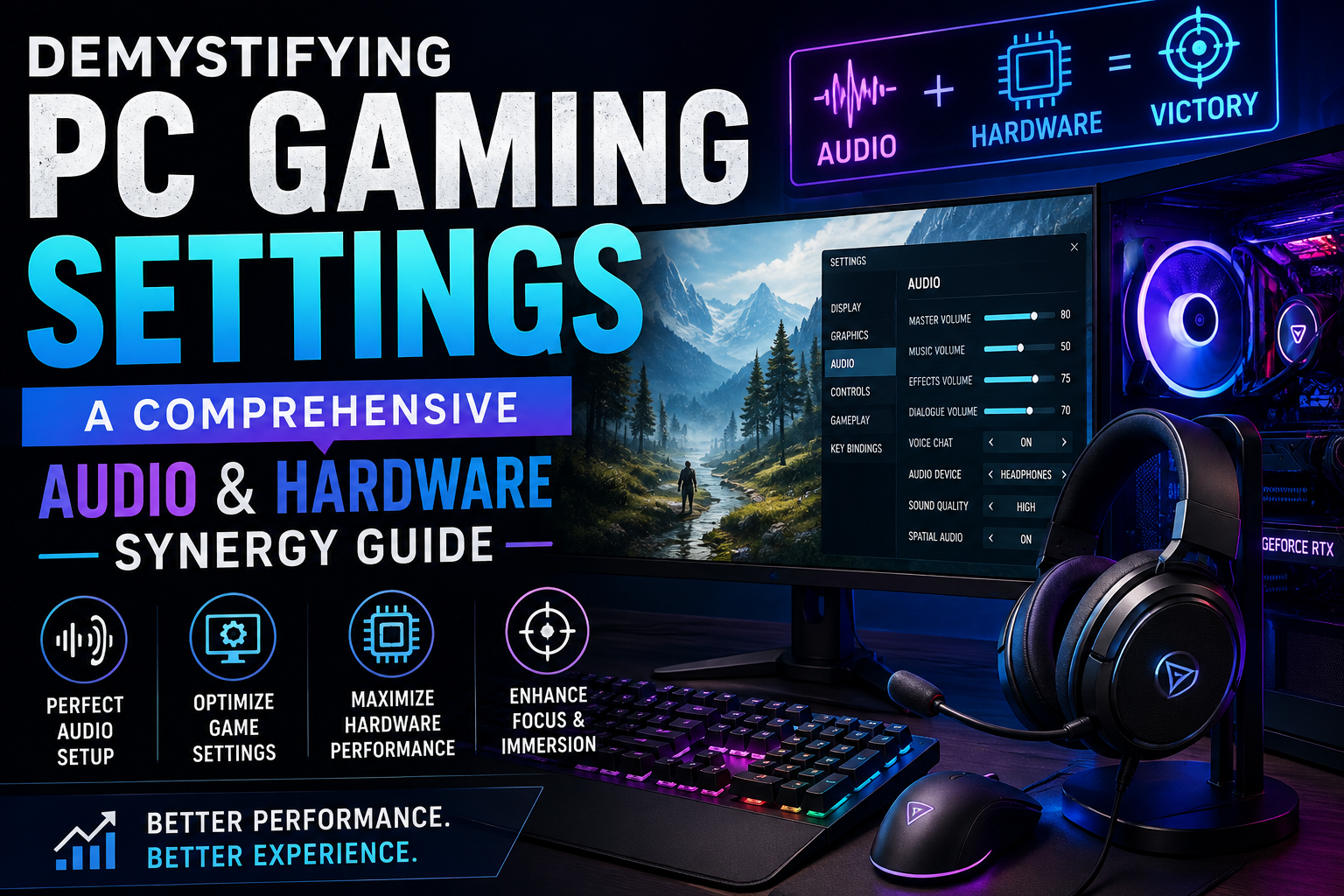
1. Introduction to System Balance
PC gaming gives players unprecedented control over how games look, feel, and sound. However, turning every slider to its maximum level can lead to stuttering frame rates, high system latency, and audio desynchronization.
Finding the right balance depends entirely on your specific hardware, the game you are playing, your display resolution, and your playback peripherals. This guide explores how to optimize your environment, bridge the gap between visual performance and acoustic clarity, and create a seamless gaming session.
2. Aligning Visual Performance with Acoustic Immersion
While graphics settings govern visual fidelity and motion fluidity, audio configurations handle spatial awareness and emotional depth. When your system struggles with heavy graphic workloads, it can occasionally lead to micro-stutters that disrupt audio pacing or cause stuttering in wireless audio connections due to high system resource loads.
- Frame Rate and Audio Sync: High frame rates reduce input lag, ensuring that the audio cue of a weapon firing matches the visual flash instantaneously.
- Spatial Audio Processing: Modern games use complex positional audio calculations that demand processing headroom, much like high-end graphics options.
- System Latency: Minimizing background processing overhead keeps both video rendering and audio transmission fast and reliable.
3. Essential Visual Settings for Smooth Gameplay
Before diving into sound configurations, ensuring your display options are properly calibrated sets the foundation for a responsive experience.
- Resolution: Running a game at your monitor’s native resolution ensures sharp text and crisp UI elements. Lowering resolution can boost frame rates, but may introduce blurriness if scaling is handled poorly.
- Refresh Rate: Matching your in-game performance output to your monitor’s Hertz rating ensures motion remains fluid without unnecessary hardware strain.
- Shadows and Post-Processing: Lowering demanding options like volumetric fog or high-detail shadows can dramatically improve frame consistency without severely impacting overall visual quality.
4. Understanding Gaming Audio Architecture
Audio in modern games is rendered in real-time, matching what happens on your screen. Sound effects are dynamically positioned in a 3D space around your virtual character.
- Direct Audio vs. Ambient Tracks: Core sound effects like footsteps and gunfire are usually prioritized by game engines so players can react quickly. Environmental sounds and musical scores build atmosphere.
- Dynamic Range: This measures the difference between the softest and loudest sounds in a game. High dynamic range allows for cinematic immersion, while compressed audio profiles help quieter cues stand out in competitive matches.
5. Hardware Choices: Headsets, Earbuds, and Speakers
The physical gear you use dictates how well you can interpret in-game audio cues. Each form factor offers distinct trade-offs:
- Over-Ear Headphones: Provide large drivers, wide soundstages, and excellent passive noise isolation, making them ideal for immersive single-player titles.
- In-Ear Monitors (IEMs) and Earbuds: Offer portable convenience and a tight seal inside the ear canal, often favored by players who prefer a lightweight fit or travel frequently.
- Desktop Speakers: Deliver a room-filling soundstage and tactile bass response, though they lack the precise positional isolation of closed-back headphones.
6. Connectivity and Codecs: Wired vs. Wireless Audio
Choosing how to connect your audio gear affects both fidelity and latency.
- Wired Connections: Offer uncompressed audio transmission and zero latency, making them reliable for competitive gaming where every millisecond matters.
- Wireless Connections: Provide freedom of movement, but rely on Bluetooth profiles or dedicated 2.4GHz USB dongles. When using Bluetooth, high-quality audio codecs help minimize audio delay, though dedicated wireless dongles generally offer superior stability for gaming rigs.
7. Spatial Audio and Surround Sound Options
Virtual surround sound and spatial audio technologies simulate multi-speaker setups using standard stereo headphones.
While these features can widen the soundstage and help you judge the direction of distant sounds, they can occasionally alter the natural tone of music and dialogue. Testing different spatial profiles within your operating system or game settings helps determine which option provides the clearest positional cues for your specific audio gear.
8. Common Optimization Mistakes to Avoid
- Maxing Out Every Setting: Forcing ultra graphics and uncompressed audio sample rates simultaneously on modest hardware can introduce severe system stutters.
- Ignoring Driver Updates: Running outdated audio or graphics drivers can cause compatibility bugs, audio crackling, and lower frame rates.
- Neglecting In-Game Audio Mixes: Leaving master volumes unadjusted can cause loud explosions to drown out vital tactical cues like footsteps or teammate communications.
- Ignoring Hardware Limits: Expecting entry-level components to handle heavy ray-tracing alongside uncompressed multi-channel audio processing.
FAQ
- Q: Does changing graphics settings affect my game’s audio quality?
- A: Generally, graphics settings govern visual rendering while audio settings handle sound, but severe system stuttering caused by overloaded graphics hardware can occasionally cause audio pops or desynchronization.
- Q: Should I use virtual surround sound for competitive gaming?
- A: Many players find that spatial audio or virtual surround helps identify enemy footsteps more accurately, though results vary depending on the game engine and your headset.
- Q: Are wired headphones better than wireless for gaming?
- A: Wired headphones offer zero latency and uncompressed audio, while modern 2.4GHz wireless headsets offer great convenience with minimal delay. Standard Bluetooth wireless can introduce noticeable lag in fast-paced games.
- Q: How does resolution impact overall system performance?
- A: Higher resolutions require your graphics card to process significantly more pixels, which lowers frame rates and leaves less processing headroom for background tasks.
- Q: What is dynamic range compression in game audio?
- A: Compression narrows the gap between loud and quiet sounds, making subtle audio cues like footsteps easier to hear during intense action sequences.
- Q: Can I use earbuds for long gaming sessions?
- A: Yes, provided they fit comfortably. However, many users find over-ear headphones distribute weight more evenly during extended wear.
Conclusion
Achieving the ultimate PC gaming experience is all about balance. By thoughtfully configuring your display options, choosing the right audio hardware, and keeping your system drivers up to date, you can enjoy crisp visuals and precise positional audio without overworking your components. Take time to test different configurations to find the sweet spot that suits your personal playstyle.
Microsoft Learn – Microsoft’s own developer documentation explaining how WASAPI exclusive-mode audio streams work, including latency behavior and best practices for apps using exclusive vs. shared audio access. Click here to open the guide.
Fan Tech – A practical walkthrough on configuring your sound card for gaming, covering exclusive mode, sample rate and bit depth settings, spatial audio options like Dolby Atmos and DTS, and avoiding conflicts from bundled driver software. Click here to open the guide.
Windows News – Step-by-step instructions for adjusting Windows Sound Control Panel settings to reduce game audio lag, including exclusive mode setup, disabling spatial audio processing, and power-plan effects on latency. Click here to open the guide.
Ultimate PC Tools – An explainer on sound latency, how to test for it, and how wired versus wireless/Bluetooth audio codecs (SBC, AAC, aptX) affect the delay between game audio and sound output. Click here to open the guide.
Tecnobits – A clear breakdown of what exclusive mode does in Windows 11, when it helps versus when it causes conflicts with other running applications, and how to enable or disable it. Click here to open the guide.
MaxedTech – A hands-on guide to Realtek Audio Control Panel settings, including sound quality levels, speaker configuration, and recommended sample rate/bit depth for gaming setups. Click here to open the guide.
2 thoughts on “Demystifying PC Gaming Settings: A Comprehensive Audio & Hardware Synergy Guide”