
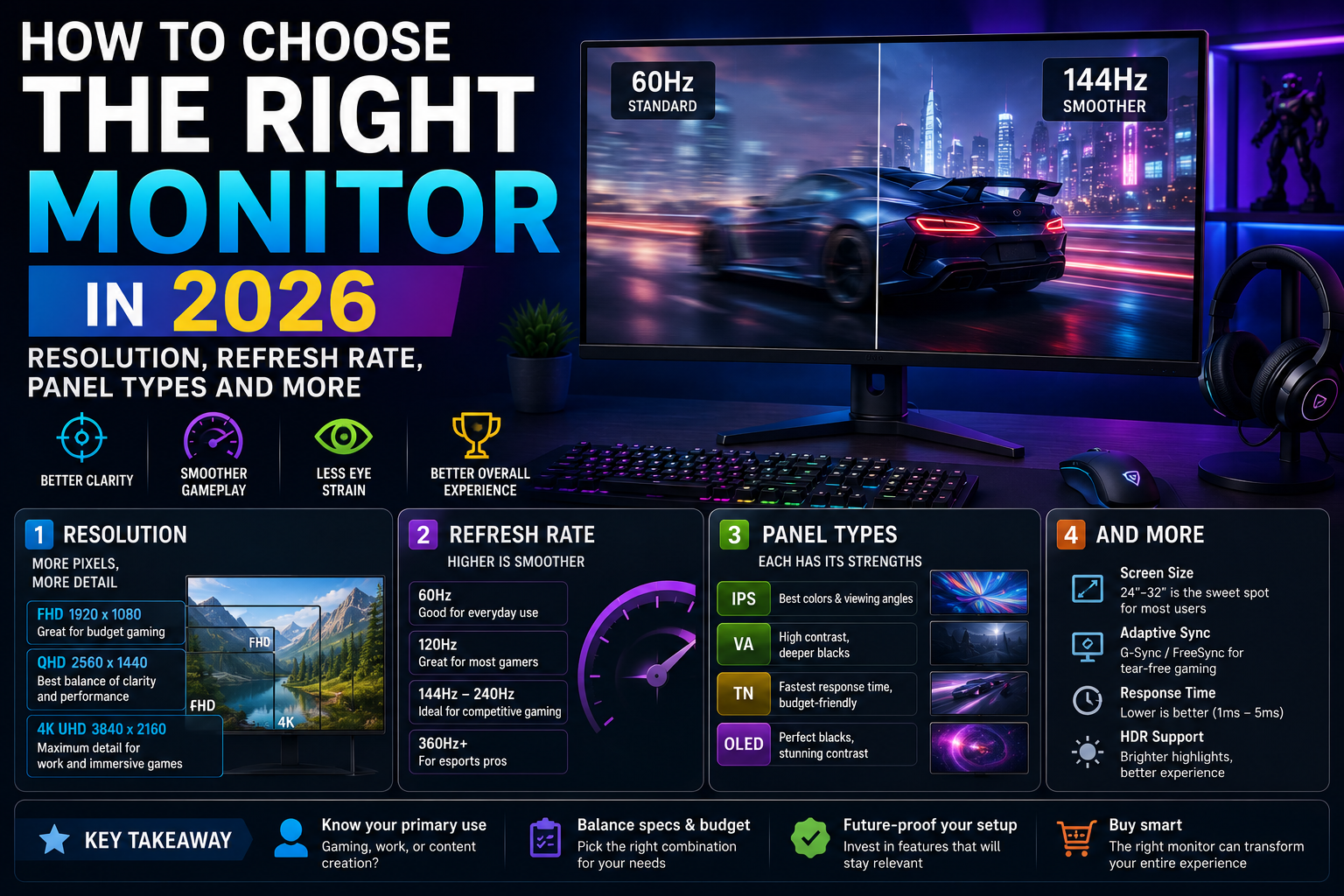
Selecting a new computer monitor can feel like navigating an overwhelming maze of acronyms, technical terms, and conflicting marketing claims. Specifications like refresh rates, panel technologies, and pixel resolutions sound important, but understanding what they actually mean for your day-to-day experience is another matter entirely.
The right monitor depends completely on how you intend to use it. A competitive gamer requires entirely different display characteristics than a professional photo editor or a remote office worker. This monitor buying guide breaks down each core specification clearly, helping you evaluate your options and choose a display that matches your actual workflow, computer setup, and budget.
For more insights into computer hardware and desktop peripherals, explore our [Internal Link: Monitors] and [Internal Link: PC Hardware].
1. Monitor Size
Monitor size dictates both how much content you can view at once and how much physical space the display will occupy on your desk.
- Smaller displays: Ranging from 21 to 24 inches, these screens fit comfortably on compact desks and work well for basic office tasks, casual browsing, or multi-monitor setups where physical width is restricted.
- Mainstream desktop displays: Spanning 27 inches, this size represents a sweet spot for general productivity, gaming, and entertainment, offering ample screen real estate without overwhelming standard desks.
- Large displays: Ranging from 32 inches and above, these screens provide massive viewing areas ideal for split-screen multitasking, media consumption, and immersive gaming, provided you have sufficient viewing distance.
- Ultrawide monitors: Featuring an expanded horizontal aspect ratio, ultrawides replace dual-monitor setups by offering a continuous, wide canvas that benefits video editors, spreadsheet users, and immersive gamers.
Actual ideal sizing depends heavily on your viewing distance, available desk space, and the native resolution paired with the panel.
2. Resolution
Resolution refers to the total number of individual pixels—arranged in columns and rows—that make up the image on your screen. Higher pixel counts generally result in sharper text, finer image details, and smoother graphics.
- Full HD (1920 x 1080): A long-standing standard that works well on smaller screens and demands less graphical power from your computer, making it popular for budget-conscious setups and high-refresh-rate gaming.
- QHD (2560 x 1440): Often called 1440p, this resolution offers a noticeable step up in sharpness over Full HD, making it an ideal mainstream choice for 27-inch desktop monitors.
- 4K Ultra HD (3840 x 2160): Delivers exceptional pixel density and fine detail, making it valuable for professional photo editing, detailed design work, and media consumption.
- Higher resolutions: Specialized ultrawide and ultra-high-definition formats cater to niche professional workflows requiring expansive screen space.
Higher resolution is not automatically better for everyone. Running a 4K display requires significantly more graphics processing power than a 1440p or 1080p screen. If your computer hardware cannot keep up, gaming and daily performance can suffer.
3. Refresh Rate
Refresh rate measures how many times per second the monitor updates the image on the screen, expressed in Hertz (Hz).
- 60Hz: The traditional standard that handles standard office tasks, web browsing, and video playback smoothly.
- Higher refresh rates: Ranging from 120Hz, 144Hz, and beyond, higher refresh rates deliver vastly smoother motion on screen.
While higher refresh rates are essential for responsive gaming, they also make everyday desktop navigation—like moving windows and scrolling through web pages—feel noticeably smoother. However, the benefits of a high refresh rate depend heavily on your computer’s ability to generate high frame rates in the applications and games you run.
4. Response Time
Response time measures how quickly a pixel can change from one color to another, typically tracked in milliseconds (ms). In technical terms, it often refers to pixel transition speeds like gray-to-gray (GtG).
Low response times are particularly important for fast-paced gaming, as they reduce motion blur and ghosting behind moving objects. While manufacturers advertise rapid response times based on aggressive pixel overdrive settings, real-world performance can vary. Aggressive pixel settings can sometimes introduce visual artifacts, so finding a balance between motion clarity and image integrity is key.
5. Panel Types
The underlying liquid crystal or light-emitting technology used in the screen—known as the panel type—fundamentally defines contrast, color reproduction, viewing angles, and motion handling.
- IPS (In-Plane Switching): Celebrated for wide viewing angles and accurate color reproduction. IPS panels serve as a versatile, dependable choice for general office work, creative tasks, and mainstream gaming, though traditional contrast ratios can make deep blacks look slightly gray in dark rooms.
- VA (Vertical Alignment): Known for high native contrast ratios, making blacks appear deeper and shadows richer. VA panels excel in dimly lit environments for movie watching and immersive single-player gaming, though older or budget VA panels can exhibit smearing during fast motion.
- OLED (Organic Light Emitting Diode): Utilizes self-lit pixels that can turn completely off, delivering infinite contrast, true blacks, and near-instantaneous pixel response times. OLED displays offer exceptional image depth and color vibrancy, making them popular for high-end entertainment and creative work, though buyers must consider factors like potential burn-in risks and cost.
For further exploration of display technology trends, visit our [Internal Link: Buying Guides] and [Internal Link: Comparisons].
6. Brightness and HDR
Display brightness, measured in nits, determines how well a monitor combats glare in brightly lit rooms. Higher brightness levels are especially valuable in sunlit offices or well-lit studio spaces.
High Dynamic Range (HDR) aims to deliver a wider range of colors and luminosity, creating more realistic highlights and shadows in supported games and movies. However, HDR performance varies drastically across monitors. A budget monitor that merely accepts an HDR signal does not possess the peak brightness or local dimming hardware required to deliver a true, premium HDR experience. True HDR capability requires sophisticated backlight dimming zones or self-lit pixel technology like OLED.
7. Color Accuracy
Color accuracy measures how precisely a display reproduces colors compared to industry reference standards (such as sRGB, Adobe RGB, or DCI-P3).
- Crucial for: Photographers, graphic designers, video editors, and digital artists who need to trust that the colors on their screen match final printed outputs or client expectations.
- Less critical for: General office users, writers, and casual web browsers who primarily work with text documents and standard spreadsheets.
8. Adaptive Sync
Adaptive synchronization technologies—such as variable refresh rate solutions—synchronize the monitor’s refresh rate dynamically with the frame output of your computer’s graphics card.
This synchronization eliminates screen tearing (where the image appears horizontally split) and reduces stutter without adding noticeable input lag. Because modern adaptive sync solutions work across open industry standards, most modern graphics cards and monitors pair together smoothly regardless of brand.
9. Connectivity
Physical and digital ports dictate how easily a monitor connects to your computer and peripheral ecosystem.
- HDMI: The ubiquitous standard for connecting computers, media players, and consoles. Version capabilities vary, so checking bandwidth specifications matters for high-resolution, high-refresh-rate setups.
- DisplayPort: A primary connection for computer monitors, supporting high resolutions and refresh rates reliably.
- USB-C: Increasingly popular for modern laptops, single-cable USB-C connections can transmit display data, peripheral signals, and power delivery to charge your laptop simultaneously.
- USB Hubs and Audio: Built-in USB ports and headphone jacks add convenience by allowing you to plug accessories directly into the monitor.
Always check compatibility between your computer’s output ports and the inputs available on the monitor before making a purchase.
10. Ergonomics
A monitor stand is more than a simple base; it governs your physical posture and day-to-day comfort.
Ergonomic stands offer height adjustment, tilt, swivel, and pivot (rotating the screen into portrait mode). Proper monitor positioning—with the top of the screen at or just below eye level—prevents neck strain and fatigue during long working sessions. If a monitor lacks ergonomic adjustments, checking for VESA mounting compatibility allows you to attach the display to an aftermarket desk arm or wall mount.
11. Ultrawide and Multi-Monitor Setups
Managing your digital workspace often involves choosing between different multi-screen configurations:
- One standard monitor: Simple, clean, distraction-free, and easy to fit on any desk.
- Ultrawide monitor: Eliminates central bezel gaps, offering a continuous panoramic workspace ideal for timeline-based editing and multitasking.
- Two-monitor setup: Provides distinct physical screens for snapping separate windows full-screen, though bezel interruptions and cable management require more planning.
For recommendations on organizing your desktop workspace, visit our [Internal Link: Accessories] and [Internal Link: Reviews].
12. Monitor Recommendations by User Type
- Office Workers: Prioritize eye comfort, ergonomic adjustment, crisp text clarity at QHD or Full HD resolution, and reliable IPS panel angles.
- Students: Look for versatile, budget-friendly mainstream displays with solid reliability for writing papers and streaming lectures.
- Gamers: Prioritize high refresh rates, low response times, adaptive sync support, and resolution matched to your graphics card power.
- Programmers: Benefit greatly from tall aspect ratios, pivot capabilities for reading long lines of code, and high-resolution text clarity.
- Designers & Photographers: Prioritize high color accuracy, broad color gamut coverage, and sharp resolution.
- Video Editors: Benefit from wide color spaces, large screen real estate or ultrawide formats, and accurate timeline scaling.
- General Users: Look for balanced everyday performance, reliable build quality, and versatile connectivity.
- Content Creators: Need a blend of color precision, ample screen space, and dependable port selection.
13. How Much Monitor Do You Actually Need?
It is easy to overspend on specifications you may never utilize. An accountant working primarily with spreadsheets and text documents gains very little from a 240Hz gaming display or an ultra-wide color-accurate creative panel. Conversely, a competitive esports gamer will feel limited by a basic 60Hz office monitor.
Prioritize features based strictly on your primary daily tasks. Assess what your computer hardware can handle and invest your budget into the specifications that directly impact your workflow.
14. Common Monitor Buying Mistakes
- Buying resolution without considering GPU performance: Purchasing a 4K display when your computer graphics card cannot support native resolution gaming or rendering.
- Choosing refresh rate without needing it: Paying extra for ultra-high refresh rates when your daily routine consists entirely of office productivity and web browsing.
- Ignoring panel characteristics: Buying a cheap panel without considering how contrast, viewing angles, or motion handling affect your viewing experience.
- Ignoring connectivity: Forgetting to verify whether the monitor features the exact HDMI, DisplayPort, or USB-C cables and ports your computer requires.
- Ignoring ergonomics: Buying a fixed-stand monitor that cannot adjust height, leading to poor posture and neck strain.
- Buying based only on advertised HDR: Expecting cinematic HDR performance from an entry-level monitor lacking local dimming hardware.
- Ignoring desk space: Ordering a massive ultrawide or 32-inch screen without measuring your physical desk dimensions first.
- Ignoring color requirements: Purchasing a standard sRGB monitor when professional wide-color-gamut editing is required.
15. Monitor Buying Checklist
Before finalizing your monitor purchase, review this practical checklist:
- Size: Does the screen fit your desk space and viewing distance?
- Resolution: Is the pixel count appropriate for your screen size and computer hardware?
- Refresh rate: Does the Hertz rating match your gaming or smoothness requirements?
- Panel type: Does IPS, VA, or OLED best fit your contrast and color preferences?
- Response time: Are pixel transition speeds adequate for your motion needs?
- Brightness: Is the peak luminance sufficient for your room lighting conditions?
- HDR: Does the display feature true HDR hardware, or is it just HDR-compatible?
- Color accuracy: Does the monitor meet your professional color space needs?
- Connectivity: Do the available ports match your computer’s outputs?
- Ergonomics: Does the stand offer height, tilt, and swivel adjustments, or VESA support?
- Compatibility: Does your operating system and graphics hardware support the display natively?
Comparison Table
| Monitor Feature | What It Means | Most Important For |
| Size | Physical dimensions of the display | Desk space management and viewing comfort |
| Resolution | Total pixel count and image sharpness | Text clarity, detailed design, and workspace real estate |
| Refresh rate | How often the screen updates per second (Hz) | Smooth motion in gaming and general navigation |
| Response time | Pixel color transition speed (ms) | Reducing motion blur and ghosting in fast action |
| Panel type | Technology governing contrast, color, and viewing angles | Overall image quality, black levels, and viewing angles |
| Brightness | Maximum screen luminance (nits) | Combating glare in brightly lit environments |
| HDR | Expanded contrast and color range support | Immersive gaming and cinematic media viewing |
| Color accuracy | Precision of color reproduction against standards | Professional photography, design, and video editing |
| Adaptive sync | Dynamic refresh rate synchronization with GPU | Eliminating screen tearing and stutter during gaming |
| Connectivity | Physical input ports (HDMI, DisplayPort, USB-C) | Ensuring seamless hardware compatibility |
| Ergonomics | Stand adjustments (height, tilt, swivel, pivot) | Posture comfort and physical health |
FAQ
- Q: Is a curved monitor better than a flat monitor?
- A: Curved monitors help wrap peripheral views around you, which can enhance immersion on large ultrawide screens. Flat monitors are generally preferred for professional design work where straight lines must not appear warped.
- Q: Can I use a gaming monitor for office work?
- A: Absolutely. High-refresh-rate gaming monitors handle office work, text reading, and web browsing exceptionally well, offering extra smoothness during everyday desktop navigation.
- Q: Do I need speakers built into my monitor?
- A: Built-in monitor speakers are convenient for basic system sounds or casual video calls, but external desktop speakers or headphones offer vastly superior audio quality for music, movies, and gaming.
- Q: What is the best resolution for a 27-inch monitor?
- A: QHD (2560 x 1440) is widely considered the optimal balance for a 27-inch display, offering sharp text and clear graphics without demanding the extreme graphical power of 4K.
- Q: Does refresh rate affect productivity tasks?
- A: While not as critical as it is for gaming, a higher refresh rate makes scrolling through long web pages, documents, and timelines feel smoother and easier on the eyes.
- Q: Why do some monitors cost significantly more than others?
- A: Price differences reflect advanced panel technologies (like OLED), higher refresh rates, premium build quality, advanced ergonomic stands, integrated USB hubs, and strict color calibration.
- Q: Can any monitor be mounted on a wall or desk arm?
- A: As long as the monitor features standard VESA mounting screw holes on the back (typically 75x75mm or 100x100mm), it can be attached to compatible aftermarket arms and wall mounts.
Conclusion
Choosing the right monitor comes down to balancing your computer’s capabilities, your physical desk space, and your actual daily workload. Whether you are typing documents, editing photographs, or jumping into virtual worlds, matching your priorities to the correct resolution, refresh rate, and panel technology ensures long-term satisfaction. Take time to evaluate your requirements objectively, and select a display that enhances your computing experience without paying for features you will never use.
Lenovo – A manufacturer-published guide explaining how to evaluate resolution, refresh rate, color gamut, contrast, and HDR against different workloads like office productivity, coding, content creation, and gaming. Click here to open the guide.
Micro Center – A retailer buying guide that breaks down panel types (IPS vs. OLED trade-offs, including burn-in mitigation), and explains why pixel density (PPI) matters more than the marketing terms 1080p/1440p/4K alone. Click here to open the guide.
MonitorSuggest – A practical decision framework covering use case, size and resolution pairing, panel technology, ergonomics, connectivity, and common buying mistakes to avoid before purchase. Click here to open the guide.
Gaming PC Guru – A step-by-step guide focused on gaming monitors, covering the five current panel families, realistic refresh-rate tiers versus marketing hype, and how to match resolution and refresh rate to your GPU’s actual performance. Click here to open the guide.
One thought on “How to Choose the Right Monitor in 2026: Resolution, Refresh Rate, Panel Types and More”