
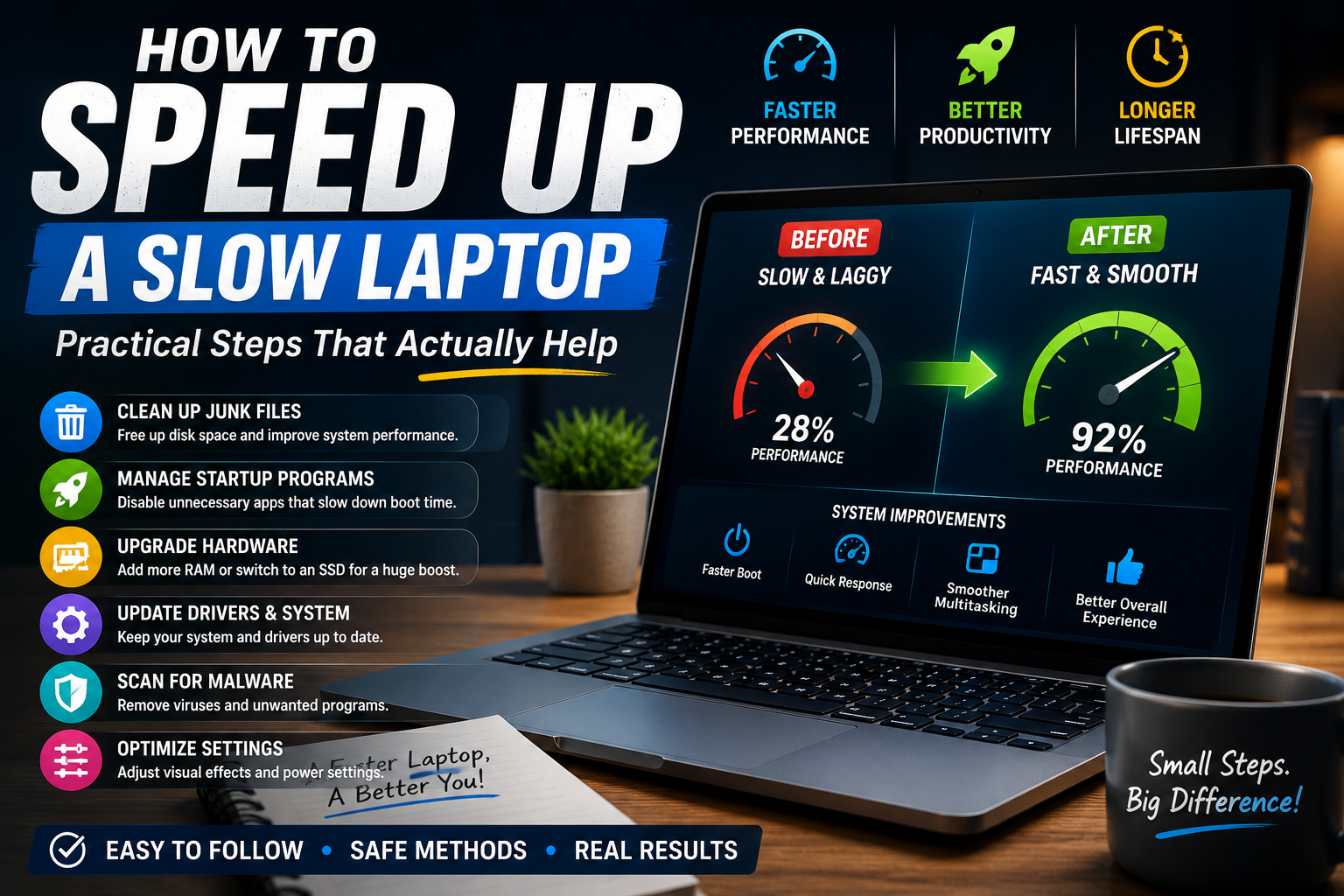
Few things are more frustrating than a laptop that has turned sluggish, unresponsive, or painfully slow. Whether it takes minutes to boot up, freezes when opening a web browser, or struggles to handle everyday multitasking, a slow laptop can severely disrupt your work and productivity.
Over time, laptops can slow down due to a variety of factors, including accumulating startup applications, limited free storage space, insufficient memory for heavy workloads, hidden background processes, outdated software, browser clutter, thermal issues, and aging hardware. Before spending money on new parts or a brand-new machine, it helps to identify the root cause of the slowdown. This step-by-step guide walks you through practical, low-risk methods to diagnose and improve your laptop’s performance safely.
For more helpful troubleshooting advice, explore our [Internal Link: How-To] and [Internal Link: Tech Explained].
1. Restart the Laptop
It sounds simple, but restarting your laptop is one of the most effective first troubleshooting steps.
When you leave a laptop running continuously or use sleep and hibernate modes for days on end, temporary system files accumulate, and background processes can become stuck in memory. Performing a clean restart clears the temporary RAM cache, terminates frozen background loops, and gives the operating system a fresh start. If a temporary software glitch is causing the sluggishness, a simple reboot often resolves it immediately.
2. Check Available Storage
When your laptop’s internal storage drive fills up to near capacity, performance can drop significantly. Operating systems require a certain amount of free space on the primary drive to use as virtual memory (page file or swap space) and to manage temporary files efficiently.
To free up breathing room on your drive:
- Remove unnecessary files: Delete old downloads, duplicate photos, and large files you no longer need.
- Empty temporary files: Use built-in system storage cleanup utilities to clear out accumulated system cache and temporary installer files.
- Uninstall unused applications: Remove old software programs and games that you no longer use.
- Move large files: Transfer massive media libraries, archives, or video files to external storage drives or cloud storage services.
For more insights on upgrading storage components, check out our [Internal Link: PC Hardware] and [Internal Link: Laptops].
3. Remove Unnecessary Startup Apps
Many software programs automatically configure themselves to launch the moment your computer boots up. While convenient for apps you use constantly, having dozens of background utilities running at startup bogs down system resources and extends boot times.
- On Windows: Open the Task Manager (using Ctrl + Shift + Esc), navigate to the Startup tab, and review the list of programs. Disable applications you do not need running immediately upon boot.
- On macOS: Open System Settings, navigate to General > Login Items, and remove unwanted applications from your background startup list.
Take care not to disable essential system security processes or core driver utilities.
4. Close Unnecessary Background Applications
If your laptop feels sluggish while you are working, background applications may be consuming vital system resources. Software running quietly in the system tray can continuously consume RAM, CPU power, network bandwidth, and battery life.
Open your operating system’s task manager or activity monitor to see which applications are actively using the most resources. If you find resource-heavy programs that you are not actively using, close them to free up capacity for the tasks you care about.
5. Clean Up Your Browser
Modern web browsers are powerful tools, but they can easily become resource hogs. Keeping dozens of tabs open across multiple browser windows consumes substantial amounts of memory.
To improve browsing performance:
- Close tabs you no longer need or use browser tab-suspension extensions.
- Audit and remove unnecessary or outdated browser extensions that run scripts in the background.
- Clear your browser cache and cookies if pages begin loading sluggishly.
- Ensure your web browser software is updated to the latest version for optimal efficiency.
Keep in mind that clearing browser cache will not magically solve deeper system performance bottlenecks, but it can make web browsing feel much more responsive.
6. Update the Operating System and Drivers
Running outdated system software can lead to compatibility conflicts, security vulnerabilities, and inefficient resource handling. Operating system updates frequently include crucial bug fixes and performance optimizations.
Check your system settings for pending operating system updates. Additionally, ensure that critical hardware drivers—such as graphics, chipset, and network drivers—are up to date. Always obtain updates and drivers directly from legitimate manufacturer support sites or official operating-system update channels.
7. Scan for Malware
Malware, adware, and unwanted background background scripts can severely degrade laptop performance by hijacking system resources, displaying intrusive pop-ups, or routing network traffic without your knowledge.
Run a thorough system scan using built-in security software or a reputable, trusted antivirus utility. Avoid downloading unverified third-party cleaning tools or sketchy utilities found online, as these can introduce more security risks than they resolve.
8. Check for Overheating
Excessive heat is a common culprit behind sudden performance drops. When a laptop’s internal components get too hot, the processor automatically slows down (a process called thermal throttling) to protect itself from heat damage.
Signs of thermal issues include:
- Excessively loud fan noise
- Hot bottom panels or keyboards
- Sudden frame rate drops or freezing during basic tasks
- Unexpected shutdowns
To mitigate heat issues, keep your laptop’s intake and exhaust vents unobstructed. Always use your laptop on a hard, flat surface rather than soft materials like beds, couches, or blankets that block airflow. Never attempt to open or modify internal cooling systems unless you have technical experience.
9. Check RAM Usage
Random Access Memory (RAM) holds data for all actively running applications. If your laptop has insufficient RAM for your workflow, the system is forced to swap data back and forth with the storage drive, creating a massive bottleneck.
Open your system’s resource monitor to check your memory utilization percentage. If your RAM usage consistently sits near maximum capacity while performing everyday tasks, your hardware may be struggling to keep up with your multitasking demands.
10. Check the Storage Type
The type of storage drive inside your laptop plays a massive role in overall system responsiveness.
- HDD (Mechanical Hard Drive): Uses spinning magnetic platters and mechanical read/write heads. They are slow to access data and cause long boot times and sluggish file transfers.
- SATA SSD (Solid State Drive): Uses flash memory with no moving parts, offering dramatically faster data access speeds than traditional hard drives.
- NVMe SSD: Utilizes advanced high-speed PCIe lanes to deliver lightning-fast data transfer speeds.
If your laptop still runs on an older mechanical hard drive, replacing it with an SSD can make the computer feel remarkably faster and more responsive.
11. Consider a RAM Upgrade
If your system diagnostics reveal that your laptop frequently runs out of memory, upgrading your RAM can provide a noticeable boost during heavy multitasking, running large software suites, or handling creative workloads.
However, upgrade compatibility is critical. Not all modern laptops feature user-upgradeable memory; many thin-and-light models have RAM soldered directly onto the motherboard. Check your laptop’s technical specifications to confirm whether memory expansion is physically possible.
12. Consider an SSD Upgrade
If your laptop’s primary bottleneck is an aging, slow mechanical drive or a cramped storage capacity, swapping in a new solid-state drive can revitalize the machine.
Before making any hardware changes, always back up your important files to an external drive or cloud storage. When performing an SSD upgrade, you will need to either clone your existing drive or perform a clean installation of your operating system and restore your personal data.
13. Reset or Reinstall the Operating System
If you have tried software optimizations and your laptop remains sluggish, resetting or cleanly reinstalling the operating system can eliminate years of accumulated digital clutter, corrupted system files, and stubborn background errors.
Before proceeding with a clean installation, ensure you have backed up all personal documents, photos, account information, and software license keys. Keep in mind that a clean operating system installation is a software solution; it cannot fix failing physical hardware.
14. When the Problem Is Actually Old Hardware
Sometimes, software tweaks and component upgrades cannot overcome the limitations of aging architecture. Signs that your laptop has simply reached the end of its useful lifespan include:
- An outdated processor that lacks the power for modern applications
- Insufficient RAM that cannot be expanded
- Chronic hardware failures or persistent overheating
- A degraded battery that no longer holds a charge
- Lack of ongoing operating system and software security updates
When hardware reaches this stage, replacing the laptop entirely is often more cost-effective than attempting further upgrades.
For help evaluating new machines, visit our [Internal Link: Buying Guides] and [Internal Link: Reviews].
15. What NOT to Do
When looking for ways to speed up a slow computer, it is easy to fall for misleading marketing claims. Avoid the following pitfalls:
- Random registry cleaners: These tools can delete vital registry keys and destabilize your operating system.
- Suspicious “PC speed booster” apps: Paid utility programs promising miraculous speed boosts are often bloatware or scareware.
- Fake driver-updater tools: Unverified driver programs can install incorrect or malicious software components.
- Unsafe downloads: Never download system utilities from untrusted file-sharing sites.
- Disabling essential security features: Turning off built-in firewalls or antivirus protections leaves your system vulnerable.
- Deleting unknown system files: Manually deleting files from system directories can corrupt your operating system.
- Opening hardware blindly: Tampering with internal components without understanding proper electrostatic discharge and assembly procedures can destroy your laptop.
Quick Troubleshooting Checklist
Work through this practical checklist to diagnose and improve your laptop’s performance:
- [ ] Restart the laptop
- [ ] Check storage space and remove unnecessary files
- [ ] Remove unnecessary startup apps
- [ ] Close unused background programs
- [ ] Clean up browser extensions and tabs
- [ ] Update the operating system and drivers
- [ ] Scan for malware using reputable tools
- [ ] Check temperatures and ensure vents are clear
- [ ] Check RAM usage under typical workloads
- [ ] Check storage drive health and type
- [ ] Consider RAM or SSD hardware upgrades if supported
- [ ] Back up important files regularly
When to Upgrade vs. Replace
| Problem | Try an Upgrade | Consider Replacement |
|---|---|---|
| Slow storage | Swap HDD for an SSD | If storage is soldered and unupgradeable |
| Insufficient RAM | Add memory modules (if upgradeable) | If RAM is soldered on an aging motherboard |
| Old processor | Not possible (CPUs cannot be upgraded on modern laptops) | When processor struggles with basic daily software |
| Battery problems | Replace internal battery | If battery failure coincides with overall system aging |
| Overheating | Clean external dust vents | If internal cooling design fails chronically |
| Physical damage | Replace broken hinges or ports | If chassis damage compromises structural integrity |
| Software compatibility | Update drivers and OS | When hardware no longer supports modern security standards |
FAQ
- Q: Why is my laptop suddenly slow?
- A: Sudden slowdowns are often caused by a runaway background process, a pending system update installing in the background, a malware infection, or a critically full storage drive.
- Q: Does deleting files make a laptop faster?
- A: Deleting files helps if your primary storage drive is nearly full, as it frees up virtual memory space. However, deleting files will not speed up a laptop if storage space was already ample.
- Q: Does more RAM make a laptop faster?
- A: More RAM allows your laptop to run multiple applications simultaneously without lagging. However, if your RAM is already sufficient for your workflow, adding more will not increase speed.
- Q: Does an SSD make a laptop faster?
- A: Yes. Moving from an older mechanical hard drive to an SSD drastically reduces boot times, speeds up file transfers, and makes application loading noticeably snappier.
- Q: Should I use a PC cleaner?
- A: Most third-party PC cleaner programs are unnecessary and potentially harmful. Built-in operating system storage cleanup tools are safer and more reliable.
- Q: Can overheating slow down a laptop?
- A: Absolutely. When a laptop overheats, thermal throttling reduces processor speeds to lower temperatures, causing sudden performance drops and lag.
- Q: Should I reset Windows?
- A: Resetting your operating system is a great late-stage troubleshooting step to clear out deep software corruption, provided you have backed up all important personal files.
- Q: When should I replace my laptop?
- A: You should consider replacing your laptop when its processor is too outdated for modern software, its components cannot be upgraded, or repair costs approach the price of a new machine.
Conclusion
Dealing with a sluggish laptop can be frustrating, but diagnosing the root cause before spending money is the smartest approach. By working through simple software maintenance steps—such as clearing startup apps, managing storage, cleaning your browser, and checking for overheating—you can often restore snappy performance without opening your wallet. If software fixes fall short, targeted hardware upgrades like an SSD or additional RAM can breathe new life into a capable machine. Evaluate your system calmly, tackle the easiest fixes first, and invest wisely based on your actual workflow needs.
iTechGuides – An expert-reviewed guide that starts with diagnosing what’s actually causing the slowdown (storage, startup apps, overheating, or a failing drive) before jumping to fixes, including official Microsoft and Apple thermal and support guidance. Click here to open the guide.
TechJournal – A 15-tip guide covering startup app management, malware scans, storage cleanup, driver updates, and RAM/virtual memory issues, with step-by-step menu paths for both Windows and Mac. Click here to open the guide.
Decent Techno World – A practical fixes-that-work guide covering the most common causes of slowdown, when an SSD upgrade or RAM addition makes sense, and when it’s time to consider a factory reset or a new laptop instead. Click here to open the guide.
MacPaw – A Mac-focused guide covering Spotlight indexing slowdowns, iCloud sync issues, and other Mac-specific performance quirks that don’t apply to Windows machines. Click here to open the guide.