
—
Introduction – Why the Right Keyboard Matters More Than You Think
Picture this: you’re typing an important email, battling through a high‑stakes gaming session, or drafting a novel that could change lives. The tool you rely on for every keystroke? Your keyboard. Yet most people treat it as a simple, interchangeable accessory—until a sticky key, an uncomfortable layout, or a lack of responsiveness throws a wrench into their workflow.
In today’s digital age, the keyboard has evolved from a basic input device into a highly specialized piece of hardware that can boost productivity, enhance comfort, and even improve your gaming performance. Whether you’re a remote‑worker, a programmer, a gamer, or a student, picking the right keyboard can make the difference between a smooth, enjoyable experience and a daily source of frustration.
In this comprehensive, 2,000‑word guide, we’ll explore everything you need to know about keyboards: the major keyboard types, essential features and ergonomics, how to choose the best keyboard for your needs, and practical maintenance tips to keep it performing at its peak. Let’s dive in and unlock the full potential of this indispensable tool.
—
1. Keyboard Types – From Classic to Cutting‑Edge
1.1 Mechanical vs. Membrane: The Core Difference
| Feature | Mechanical Keyboard | Membrane Keyboard |
|———|——————–|——————-|
| Switch Mechanism | Individual physical switches under each key (e.g., Cherry MX, Gateron) | Rubber dome or silicone sheet that registers pressure |
| Tactile Feedback | Distinct “click” or “bump” feel, often audible | Soft, mushy feel; minimal sound |
| Durability | 50‑100 million keystrokes per switch (some up to 200 M) | 5‑10 million keystrokes overall |
| Customization | Swappable keycaps, programmable layers, hot‑swappable switches | Limited; usually fixed keycaps and no programmability |
| Price Range | $70‑$300+ (high‑end models) | $10‑$70 (budget‑friendly) |
Why it matters: Mechanical keyboards dominate among typists, programmers, and gamers who value precision, speed, and longevity. Membrane keyboards, on the other hand, are lightweight, quiet, and budget‑friendly—perfect for casual use or office environments where noise is a concern.
1.2 Specialty Keyboard Layouts
| Layout | Key Features | Ideal For |
|——–|————–|———–|
| Full‑size (104/108‑key) | Includes number pad, function row, navigation cluster | Data entry, accounting, general office work |
| Tenkeyless (TKL, 87‑key) | Removes numeric keypad, retains full functionality | Desk‑space saving, gamers, programmers |
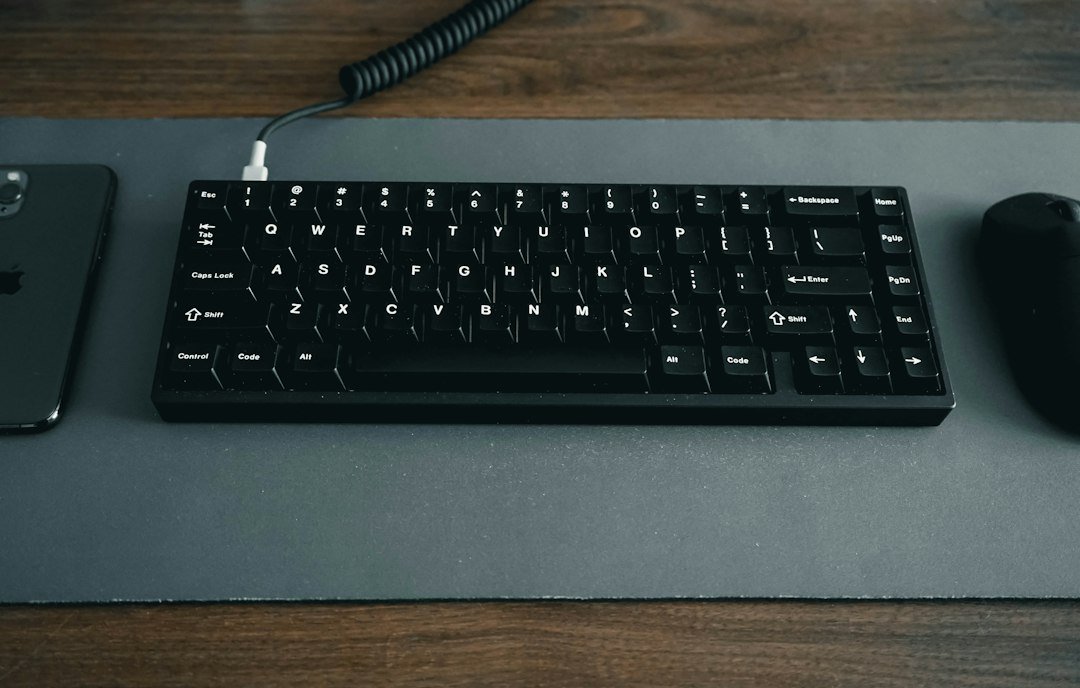
| 75% / 65% / 60% | Compact; 75% retains function row, 65% adds arrow keys, 60% is ultra‑compact | Minimalist setups, travel, small desks |
| Ergonomic (split, curved) | Split key clusters, tenting, negative tilt | Reducing wrist strain, chronic pain sufferers |
| Gaming‑specific | Macro keys, RGB lighting, fast polling rates | Competitive gaming, streamers |
| Programmable / Custom | Open‑source firmware (QMK, VIA), hot‑swap sockets | Keyboard enthusiasts, developers, DIY hobbyists |
Actionable tip: If you’re unsure which layout fits your workflow, start with a tenkeyless (TKL) model. It offers a solid balance of functionality and desk space, and most users can adapt quickly.
1.3 Connectivity: Wired vs. Wireless
- Wired (USB‑C / USB‑A): Zero latency, reliable power, plug‑and‑play. Ideal for gaming and professional work where every millisecond counts.
- Wireless (Bluetooth / 2.4 GHz RF): Freedom of movement, cleaner desk aesthetic. Look for keyboards with low‑latency 2.4 GHz dongles (often <1 ms) if you need responsiveness for gaming.
- Keycaps: PBT (polybutylene terephthalate) is durable and resistant to shine, while ABS (acrylonitrile butadiene styrene) can develop a glossy patina over time. Look for double‑shot or dye‑sublimated legends for longevity.
- Case: Aluminum or high‑grade plastic (e.g., ABS with a matte finish) adds rigidity. A metal backplate often improves stability and reduces flex.
- Stabilizers: Cherry‑style stabilizers (often pre‑lubed) provide smoother keypresses for larger keys (Space, Enter, Shift).
- Tilt & Angle: Adjustable feet (0°, 5°, 10°) help align wrists naturally.
- Split Layouts: Separate halves can be positioned shoulder‑width apart, reducing ulnar deviation.
- Tenting: Elevating the middle of the keyboard (10‑15°) encourages a more neutral wrist posture.
- Negative Tilt (e.g., Kinesis Advantage): The front of the keyboard slopes down, promoting a “hands‑free” typing posture.
- Entry‑Level (<$50): Membrane keyboards, basic mechanical clones (e.g., Redragon, Aukey). Good for beginners.
- Mid‑Range ($50‑$150): Well‑known brands like Ducky, Keychron, Logitech G series, and Corsair. Offers solid build quality and decent switch options.
- Premium ($150+): High‑end mechanical keyboards (e.g., Das Keyboard 4 Professional, Leopold FC900R, Varmilo VA108M) and custom kits (e.g., 75% custom builds with premium PCBs and plates).
- Local Electronics Stores: Many carry demo units—type a few sentences to gauge feel.
- Keyboard Meet‑ups: Communities like r/MechanicalKeyboards often host local events where you can test a variety of switches.
- Online Return Policies: Choose retailers with generous return windows (30‑45 days) so you can test the keyboard at home.
- Operating System Support: Ensure drivers are available for Windows, macOS, Linux, and Android/iOS (for Bluetooth).
- Software Suite: Brands like Logitech (G Hub), Razer (Synapse), and Corsair (iCUE) provide macro editors and lighting customization. For open‑source enthusiasts, QMK/VIA firmware offers deep programmability.
- USB‑C Connectivity: Guarantees compatibility with newer laptops and smartphones.
- Modular Design: Hot‑swap sockets and removable keycaps make upgrades easier.
- Firmware Updates: Regular firmware releases can add features and fix bugs—choose a brand with an active development community.
- Keycap Material: Opt for PBT keycaps; they resist shine and wear better than ABS.
- Actuation Force: If you find yourself hammer‑typing, consider switches with a higher actuation force (e.g., Cherry MX Black) to reduce premature wear.
- Avoid Spills: Use a spill‑resistant keyboard (many mechanical models have a sealed PCB) or place a silicone keyboard cover when eating at your desk.
- Check Manufacturer’s Site regularly for firmware patches—especially for wireless keyboards where battery management improvements are common.
- Backup Profiles: Export your macro and lighting profiles before updating firmware to avoid loss.
Pro tip: If you opt for wireless, keep a USB‑C charging cable handy and ensure the battery life meets your daily usage—most modern wireless keyboards last 30‑90 days on a single charge.
—
2. Key Features & Ergonomics – What to Look for Before You Buy
2.1 Switch Types & Feel
Mechanical switches are categorized mainly by actuation force, tactile bump, and audible click. Here’s a quick cheat sheet:
| Switch Family | Actuation Force (g) | Tactile? | Clicky? | Best For |
|—————|———————|———-|———|———-|
| Cherry MX Red | 45 | No | No | Fast typists, gamers |
| Cherry MX Brown | 45 | Yes | No | All‑rounders, programmers |
| Cherry MX Blue | 50‑60 | Yes | Yes | Typists who love clicky feedback |
| Gateron Clear | 35 | No | No | Light‑touch users, beginners |
| Kailh Box White | 50 | Yes | Yes | Clicky enthusiasts, durability |
| Razer Green | 50 | Yes | Yes | Razer ecosystem gamers |
| Low‑Profile (e.g., Cherry MX Low‑Profile Red) | 45 | No | No | Slim builds, laptop‑style feel |
Actionable advice: Test a few switches at a local store or order a switch tester online. Your personal preference for feel and sound will heavily influence satisfaction.
2.2 Build Quality & Materials
Pro tip: If you’re building a custom keyboard, consider lubing stabilizers and switches yourself for a buttery feel—many enthusiasts report up to a 30% reduction in perceived noise.
2.3 Ergonomic Design
Actionable tip: If you experience wrist pain after long typing sessions, invest in an ergonomic keyboard or add a wrist rest made of memory foam. Pair it with proper desk height to maintain a 90° elbow angle.
2.4 Additional Features Worth Considering
| Feature | Why It Matters | Typical Users |
|———|—————-|—————|
| RGB Lighting | Aesthetic customization, visual cues for macros | Gamers, streamers |
| Macro Programming | Assign complex commands to a single key | Gamers, video editors |
| N-Key Rollover (NKRO) | Allows multiple simultaneous key presses without ghosting | Fast typists, gamers |
| USB‑C Pass‑Through | Charge devices while typing, reduces cable clutter | Mobile professionals |
| Detachable Cable | Easy transport, reduces wear on the port | Travelers |
| Hot‑Swap Sockets | Swap switches without soldering | Keyboard hobbyists |
| Onboard Memory | Store profiles locally (useful for laptops without software) | Frequent travelers |
—
3. How to Choose the Perfect Keyboard for Your Needs
3.1 Identify Your Primary Use Case
| Use Case | Recommended Keyboard Type | Key Features |
|———-|—————————|————–|
| Office / Productivity | TKL or full‑size mechanical, low‑profile | Quiet switches (e.g., Cherry MX Brown), ergonomic wrist rest |
| Programming | Tenkeyless, tactile switches | Cherry MX Brown or Zealios V2, customizable keymaps |
| Gaming | Full‑size or TKL, high‑speed linear switches | Cherry MX Red, Razer Green, RGB, NKRO, 1 ms polling |
| Travel / Minimalist | 60% or 65% compact, wireless | Bluetooth, low‑profile, hot‑swap |
| Ergonomic Health | Split or curved ergonomic, mechanical | Tenting, negative tilt, silent tactile switches |
| Creative Work (Design/Video) | Full‑size with macro keys, high‑precision | Macro layer, dedicated media controls, quiet tactile switches |
Actionable step: Write down your top three priorities (e.g., “quiet typing,” “compact size,” “macro keys”) and use them as a checklist when reviewing products.
3.2 Budget Considerations
Pro tip: If you’re on a budget but crave a mechanical feel, look for hot‑swap kits that let you buy a barebones case and later upgrade switches as you learn your preferences.
3.3 Try Before You Buy
3.4 Compatibility & Software
Actionable tip: If you plan to use macros extensively, verify that the keyboard’s software allows layered profiles and per‑application mapping.
3.5 Future‑Proofing
—
4. Maintenance & Longevity – Keep Your Keyboard Performing Like New
4.1 Regular Cleaning Routine
| Frequency | Action |
|———–|——–|
| Daily | Swipe surface with a soft microfiber cloth; use compressed air to dislodge dust between keys. |
| Weekly | Remove keycaps (if mechanical) and clean with isopropyl alcohol (≥90%). Soak keycaps in warm soapy water for 15 minutes, rinse, and dry thoroughly. |
| Monthly | Deep clean switches: use a switch puller to remove switches (if hot‑swap) and lightly spray contact cleaner. For soldered keyboards, use a small brush and compressed air. |
| Quarterly | Lubricate stabilizers and, optionally, switches for smoother operation. Use a thin, high‑quality lubricant like Krytox 205g0. |
Safety note: Never pour liquid directly onto the keyboard. Ensure all components are completely dry before reassembly.