
—
Introduction – Why Knowing Your PC Parts Matters
Imagine you’re standing in the aisle of an electronics store, staring at a wall of shiny boxes labeled “CPU,” “GPU,” “Motherboard.” The excitement of building your own computer is palpable, but the sheer number of options can feel overwhelming. That’s where a solid understanding of PC components comes in.
Whether you’re a first‑time builder, a seasoned gamer looking to squeeze out a few extra frames, or a professional who needs reliable performance for video editing, knowing what each part does and how they work together is the key to making informed decisions, avoiding costly mistakes, and future‑proofing your rig.
In this 2,000‑word deep dive we’ll break down the essential computer hardware, explore the latest trends, and give you actionable tips you can apply right away—whether you’re buying a brand‑new gaming PC or upgrading an older workstation. Let’s get started!
—
1. The Brain of the Machine – CPUs and Their Role in Performance
What Is a CPU?
The Central Processing Unit (CPU), often called the “brain” of the computer, executes instructions, performs calculations, and orchestrates communication between all other components. Modern CPUs are built on billions of transistors and operate at clock speeds measured in gigahertz (GHz).
Key CPU Specs to Watch
| Spec | Why It Matters | Typical Range (2024) |
|——|—————-|———————-|
| Core Count | More cores = better multitasking and parallel processing (e.g., video rendering, streaming while gaming). | 4‑16 cores for mainstream desktops; 24‑64 cores for workstation/server CPUs. |
| Thread Count | Hyper‑Threading (Intel) / SMT (AMD) lets each core handle two tasks simultaneously, boosting efficiency. | Usually 2× core count. |
| Base / Boost Clock | Base is the guaranteed speed; boost is the temporary max when thermal headroom allows. | 2.5‑4.0 GHz base, up to 5.5 GHz boost for high‑end chips. |
| Cache (L1/L2/L3) | Faster on‑chip memory reduces latency for frequently accessed data. | 8‑64 MB L3 cache typical. |
| TDP (Thermal Design Power) | Indicates power consumption and cooling requirements. | 35‑125 W for mainstream; 200‑300 W for enthusiast CPUs. |
Choosing the Right CPU for Your Needs
| Use‑Case | Recommended CPU Families (2024) | Why |
|———-|——————————-|—–|
| Gaming | AMD Ryzen 7 7800X3D, Intel Core i7‑14700K | High single‑core performance + large L3 cache for low latency. |
| Content Creation (video, 3D rendering) | AMD Threadripper 3995WX, Intel Xeon W‑3400 | Massive core counts and ECC support. |
| General Productivity / Home Office | AMD Ryzen 5 7600, Intel Core i5‑13400 | Great price‑to‑performance, low power draw. |
| Budget Builds | AMD Ryzen 3 7300, Intel Pentium Gold G7400 | Sufficient for everyday tasks and light gaming. |
Actionable Tips
1. Match CPU to Motherboard Chipset – Not all motherboards support every CPU generation. Check the socket (e.g., AM5 for Ryzen 7000, LGA 1700 for 12th/13rd‑gen Intel) and BIOS version.
2. Plan for Cooling Early – High‑performance CPUs often need dedicated air coolers or AIO liquid coolers. Oversized coolers waste money; undersized ones cause throttling.
3. Future‑Proof with a Slightly Higher Core Count – If your budget allows, opting for a CPU with 2‑4 extra cores can extend the lifespan of your build, especially as games become more multithreaded.
—
2. The Heartbeat of the System – Motherboards, Chipsets, and Expansion
What Does a Motherboard Do?
A motherboard (or mainboard) is the central PCB that connects every component: CPU, RAM, storage, graphics card, and peripherals. It distributes power, routes data, and provides the firmware (BIOS/UEFI) that boots the system.
Core Motherboard Features
| Feature | Description | Typical Options |
|———|————-|—————–|
| Form Factor | Physical size and mounting points (ATX, Micro‑ATX, Mini‑ITX). | ATX for full‑size builds; Mini‑ITX for compact PCs. |
| Socket | CPU compatibility (e.g., AM5, LGA 1700). | Must match your chosen CPU. |
| Chipset | Determines supported features: PCIe lanes, USB ports, overclocking. | AMD X670E, B650; Intel Z790, B660. |
| VRM (Voltage Regulator Module) | Supplies clean power to CPU; more phases = better stability. | 8‑+ phases for mid‑range, 12‑+ for high‑end. |
| Memory Slots | Number of DIMM slots, max RAM capacity, supported speeds. | 4‑slot DDR5‑6000 typical. |
| PCIe Slots | Expansion for GPU, NVMe SSDs, capture cards. | PCIe 5.0 x16 for GPU, PCIe 4.0/5.0 x4 for SSDs. |
| Storage Interfaces | SATA ports, M.2 slots (NVMe). | 6‑8 SATA, 2‑3 M.2 (some with heatsinks). |
| Connectivity | USB‑C, USB‑3.2 Gen 2, Ethernet, Wi‑Fi 6E/7, Bluetooth. | Integrated Wi‑Fi 6E on many Z‑series boards. |
Choosing the Perfect Motherboard
1. Define Your Build Size – If you need a compact case, a Mini‑ITX board with limited expansion may be ideal. For a high‑end workstation, ATX gives you more PCIe lanes and RAM slots.
2. Check VRM Quality – Overclockers should look for boards with robust VRMs (12‑phase or higher) and good cooling (large heatsinks or active fans).
3. Future‑Proof with PCIe 5.0 – While GPUs still run on PCIe 4.0, upcoming SSDs and expansion cards benefit from the extra bandwidth.
4. Consider Integrated Features – Built‑in Wi‑Fi 6E, 2.5 GbE Ethernet, and high‑speed USB‑C can save you from buying separate adapters.
Actionable Checklist
- [ ] CPU socket compatibility (match the CPU).
- [ ] Chipset feature set (overclocking, PCIe version).
- [ ] Number of M.2 slots (plan for NVMe SSDs).
- [ ] VRM rating (look for reviews on power delivery).
- [ ] Connectivity (Wi‑Fi, Ethernet, USB‑C).
- Frequency (MT/s): Higher frequency improves bandwidth, beneficial for memory‑intensive workloads and some games that are “RAM‑bound.”
- CAS Latency (CL): Lower latency means quicker access; the ideal metric is CL / Frequency (e.g., CL 36 at 5600 MT/s ≈ 6.4 ns).
- XMP/DOCP Profiles: Enable easy overclocking to advertised speeds via BIOS.
- 8 GB – Adequate for most 1080p titles, older games.
- 12‑16 GB – Recommended for 1440p gaming and modern AAA titles with high‑resolution textures.
- 24 GB+ – Future‑proof for 4K/8K gaming, professional workloads (video editing, AI inference).
- TDP: Modern RTX 4090 ~ 450 W, RX 7900 XTX ~ 355 W. Ensure your PSU can handle peak loads (see next section).
- Cooling: Reference coolers are adequate for most users; aftermarket AIO or blower‑style coolers are beneficial for overclocking or cramped cases.
—
3. Memory Matters – RAM, Types, and Speed
Understanding RAM
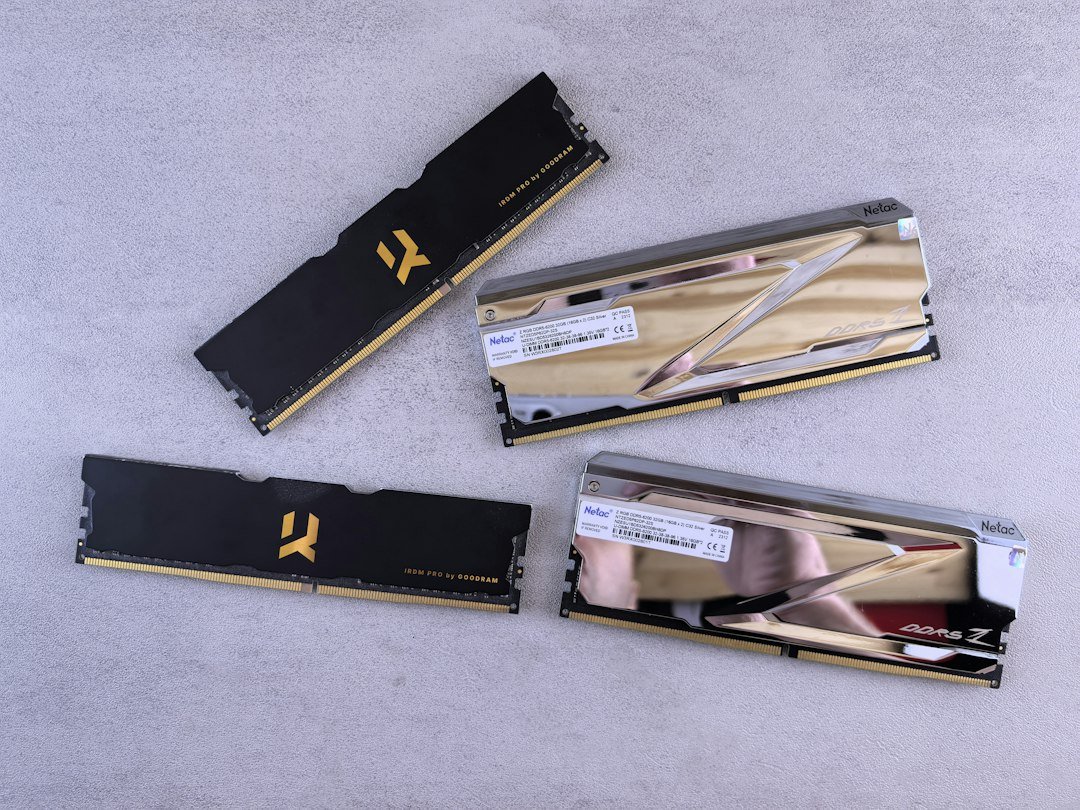
Random‑Access Memory (RAM) is volatile storage that holds data the CPU needs instantly. More RAM allows larger programs and more multitasking without resorting to slower page file usage on the SSD.
DDR5 vs. DDR4 – Which Should You Choose?
| Feature | DDR4 | DDR5 |
|———|——|——|
| Standard Speed | 2133‑3200 MT/s | 4800‑7200 MT/s (and rising) |
| Voltage | 1.2 V | 1.1 V (lower power) |
| Capacity per DIMM | Up to 32 GB | Up to 128 GB |
| Latency (CAS) | Typically 15‑19 | Typically 30‑40 (higher numbers, but offset by speed) |
| Motherboard Support | Wide (most older boards) | Requires DDR5‑compatible board (X670E, Z790, etc.) |
Bottom line: If you’re building a new system with a modern CPU and motherboard, DDR5 is the future‑proof choice, though DDR4 remains a cost‑effective option for budget builds.
How Much RAM Do You Need?
| Use‑Case | Recommended Minimum | Ideal for Power Users |
|———-|——————–|———————–|
| Web browsing, office work | 8 GB | 16 GB |
| Gaming (2024 titles) | 16 GB | 32 GB (future‑proof) |
| Content creation (4K video, 3D rendering) | 32 GB | 64 GB+ |
| Virtual machines / heavy multitasking | 32 GB | 64 GB‑128 GB |
RAM Speed and Timings – Do They Really Matter?
Actionable Tips
1. Buy in kits (2×8 GB or 2×16 GB) – Dual‑channel operation doubles bandwidth compared to a single stick.
2. Check motherboard QVL (Qualified Vendor List) – Guarantees compatibility and stable operation at advertised speeds.
3. Consider future upgrades – If your board has four slots, start with 2×16 GB and leave room for expansion later.
—
4. Graphics Power – GPUs, VRAM, and Rendering
What Is a GPU?
A Graphics Processing Unit (GPU) renders images, video, and 3D graphics. Modern GPUs also accelerate compute workloads (AI, scientific simulations) via CUDA cores (NVIDIA) or Stream Processors (AMD).
GPU Generations in 2024
| Brand | Series | Typical VRAM | Target Segment |
|——-|——–|————–|—————-|
| NVIDIA | GeForce RTX 4090 | 24 GB GDDR6X | Ultra‑high‑end gaming, 8K, AI workloads |
| | RTX 4080 | 16 GB GDDR6X | High‑end 4K gaming |
| | RTX 4070 Ti | 12 GB GDDR6X | 1440p‑4K gaming |
| | RTX 4060 | 8 GB GDDR6 | 1080p‑1440p gaming |
| AMD | Radeon RX 7900 XTX | 24 GB GDDR6 | 4K gaming, content creation |
| | RX 7900 XT | 20 GB GDDR6 | 1440p‑4K gaming |
| | RX 7800 XT | 16 GB GDDR6 | 1080p‑1440p gaming |
| | RX 7700 XT | 12 GB GDDR6 | Budget 1080p gaming |
VRAM – How Much Do You Need?
GPU Form Factors
| Form Factor | Typical Length | Power Connectors | Ideal Use |
|————-|—————-|——————|———–|
| Full‑Size (dual‑slot) | 280‑320 mm | 2×8‑pin or 1×12‑pin (NVIDIA) | High‑end desktops, workstations |
| Compact (single‑slot/low‑profile) | 170‑200 mm | 1×6‑pin or 1×8‑pin | Small form factor (SFF) builds |
| External GPU (eGPU) | Varies (enclosure) | Thunderbolt 4 | Laptops, portable rigs |
Power and Cooling Considerations
Actionable Advice
1